

1. WhatsApp Home Screen & Navigation Icons
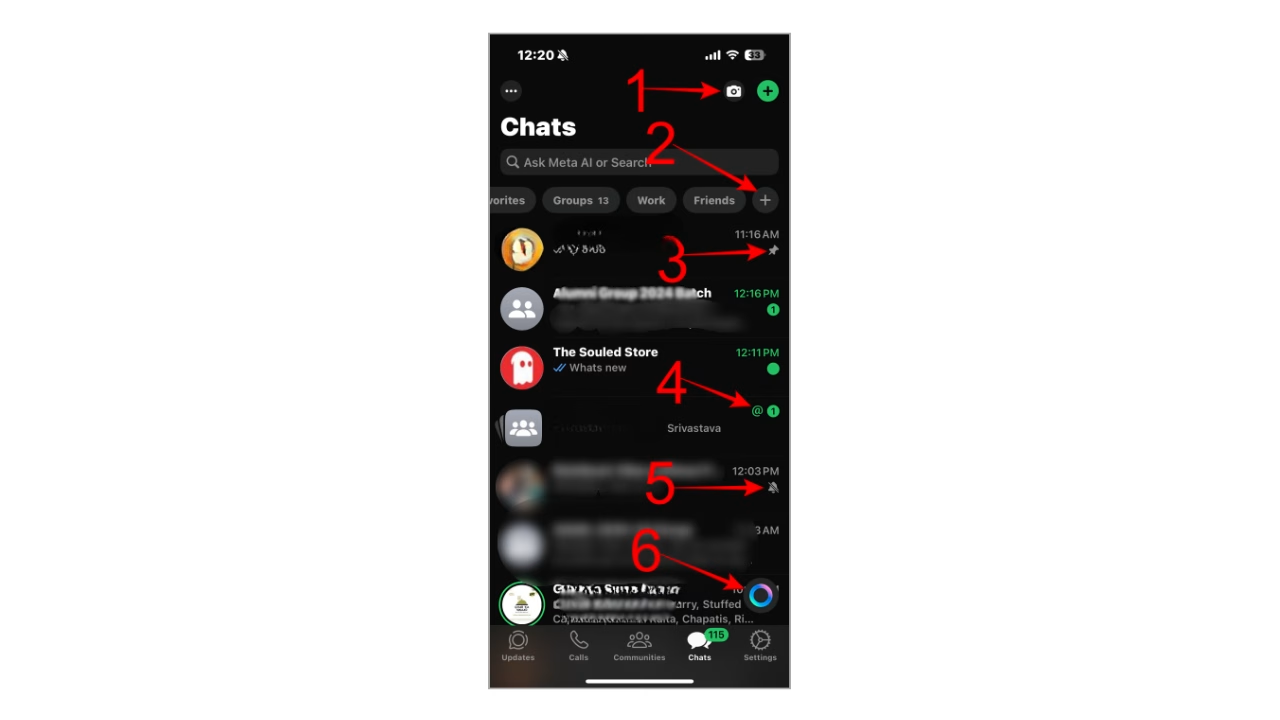
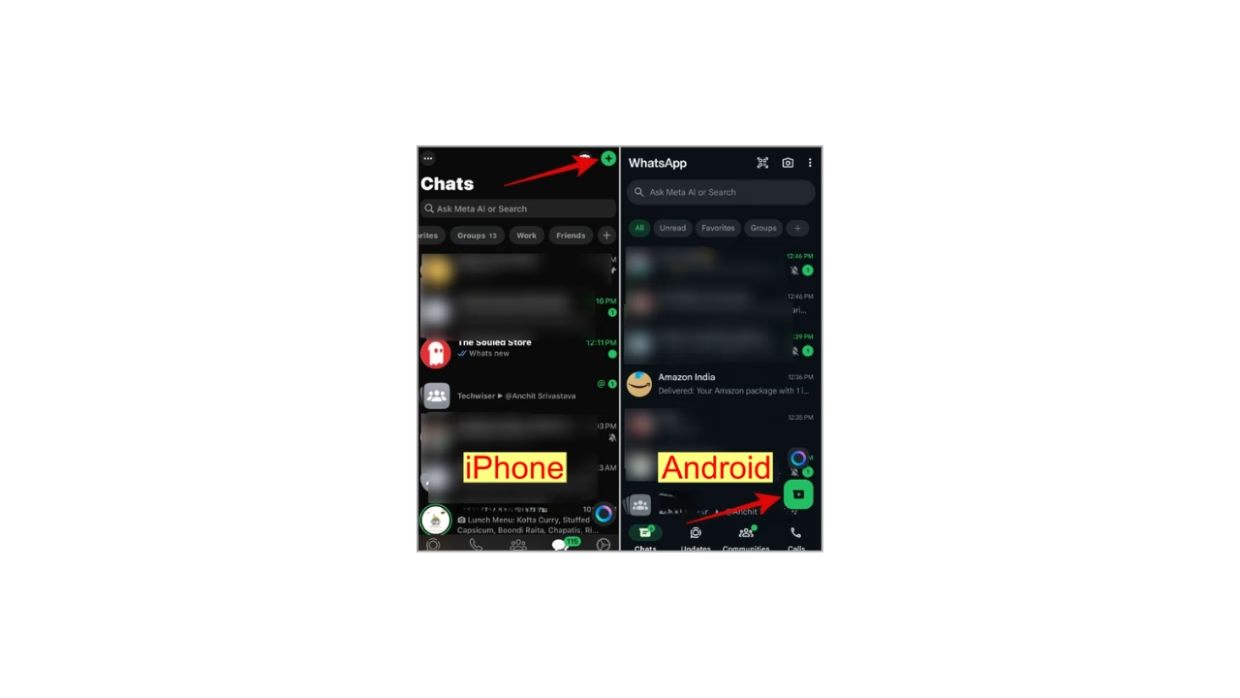
- Camera Icon: (Top-left) lets you quickly snap a photo or record a videos to share as a Status update or send directly in a chat.
- New List (Plus in Circle) Icon: It is a most commonly known as the “Add” or “Create New” icon, and when used in the context of lists, it universally represents the ability to “add a new item” or “create a new list”.
- Pin Icon: Message that I want to pin tap on more and you will see the option pin. You have the option to pin this message for 24. Hours 7 days or 30 days once you have successfully pinned the message.
- @ symbol: The standard function in regular WhatsApp chats. but is used in group chats to mention (tag) specific members, sending them a notification.
- Mute (Bell with Line Striking Through it) Icon: you’ve muted notifications for that specific chat (individual or group), so you won’t hear sounds or get pop-ups, but you’ll still see new messages in your chat list. To unmute, swipe the chat and tap the bell icon to toggle it back, or go into the chat settings and turn off “Mute Notifications“.
- Meta AI (Gradient Circle) Icon: This WhatsApp provides access to Meta’s AI assistant, which can be used to ask questions, generate content and images, summarize messages, and get real-time information from the web.
Add/Search Conversation (Plus) Icon: Helps you find existing chats or contacts quickly, create new chats, and access features like adding contacts, starting new groups, or finding specific messages.
- 1. WhatsApp Home Screen & Navigation Icons
- Notification Dots Meaning
- 2. Chat Thread Icons Meaning (Android)
- 3. WhatsApp Updates Symbols Meaning
- 4. WhatsApp Communities Symbols Meaning
- 5. WhatsApp Calls Tab Symbols
- 6. WhatsApp Delivery Symbols Meaning
- Breaking Down “Global Positioning System”
- A Quick History of GPS Development
- How GPS Works: Step-by-Step Breakdown
- GPS Applications in Daily Life
- 7. WhatsApp Video Call Screen Icons
- 8. WhatsApp Audio Call Icons
- 9. WhatsApp Chat Symbols Meaning
- Business Account with Catalogue Icons Meaning
- 10. WhatsApp Chat Camera Icon Meaning
- 11. WhatsApp Voice Note Icons
- Secure WhatsApp
- ✅ Conclusion
- ❓ Frequently Asked Questions (FAQs)
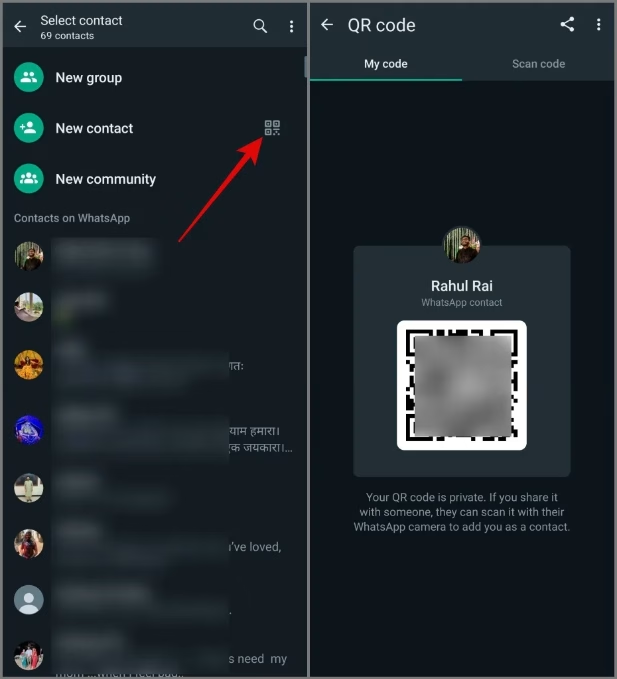
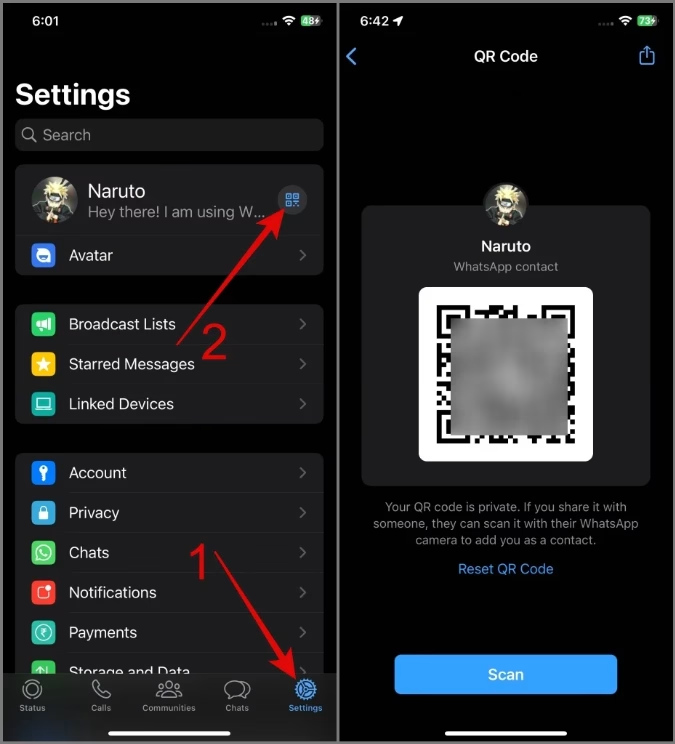
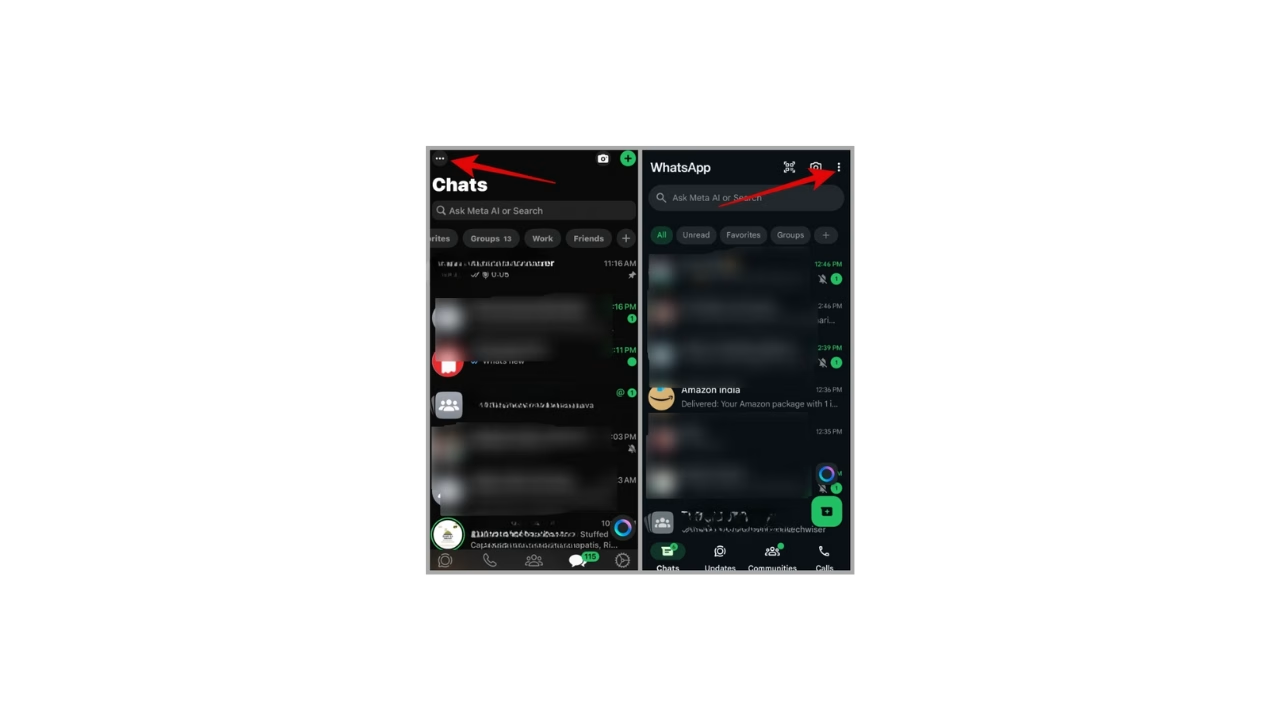
QR code icon : lets you quickly add contacts or link devices by scanning a unique code, eliminating manual number entry. Tap the icon in Settings to find your own code (share it with others to add you) or to scan someone else’s code (from camera or gallery) to open their chat instantly and start a conversation or save them as a contact.
You will find the QR icon next to your name in Settings on your iPhone.
Search (Magnifying Glass) Icon: indicates a feature to quickly search the content of frequently forwarded messages online to fact-check misinformation
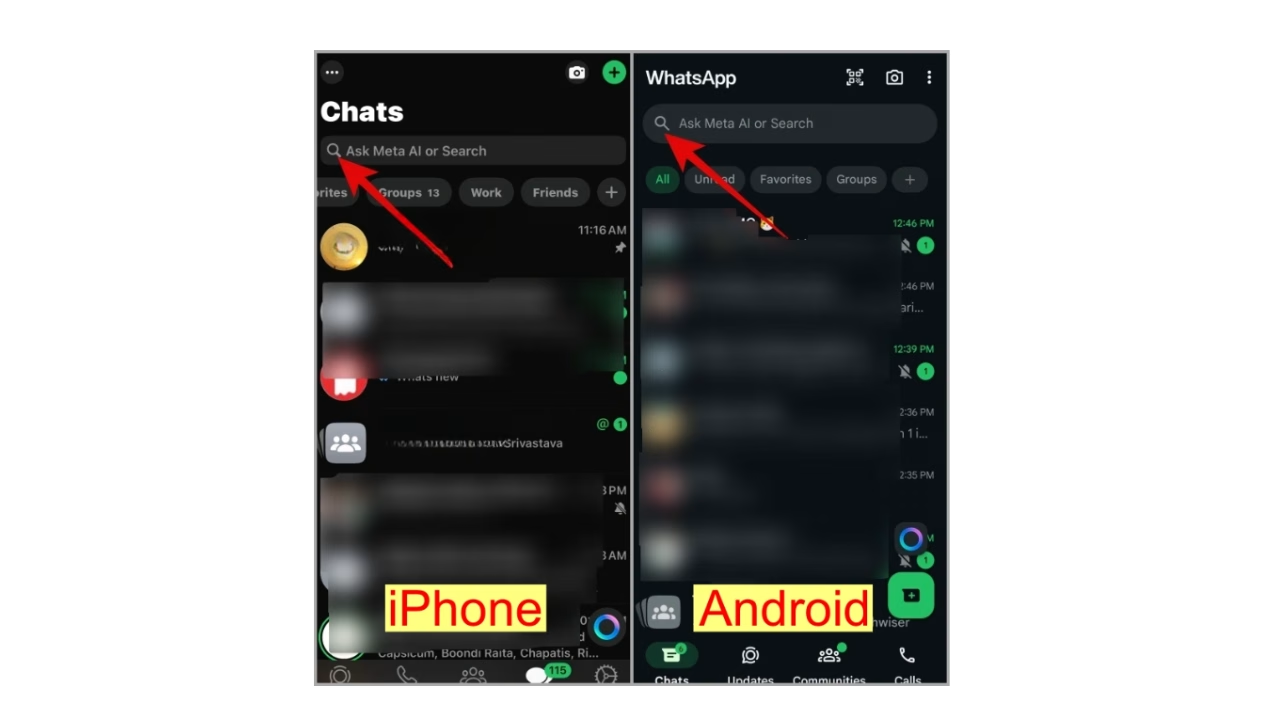
Menu (3-Dotted) Icon: This icon as a More button. Tapping it gives you various options, such as new group, starred messages, new broadcast , payments, linked devices ,and settings. However, you can only use it to select chats on your iPhone.
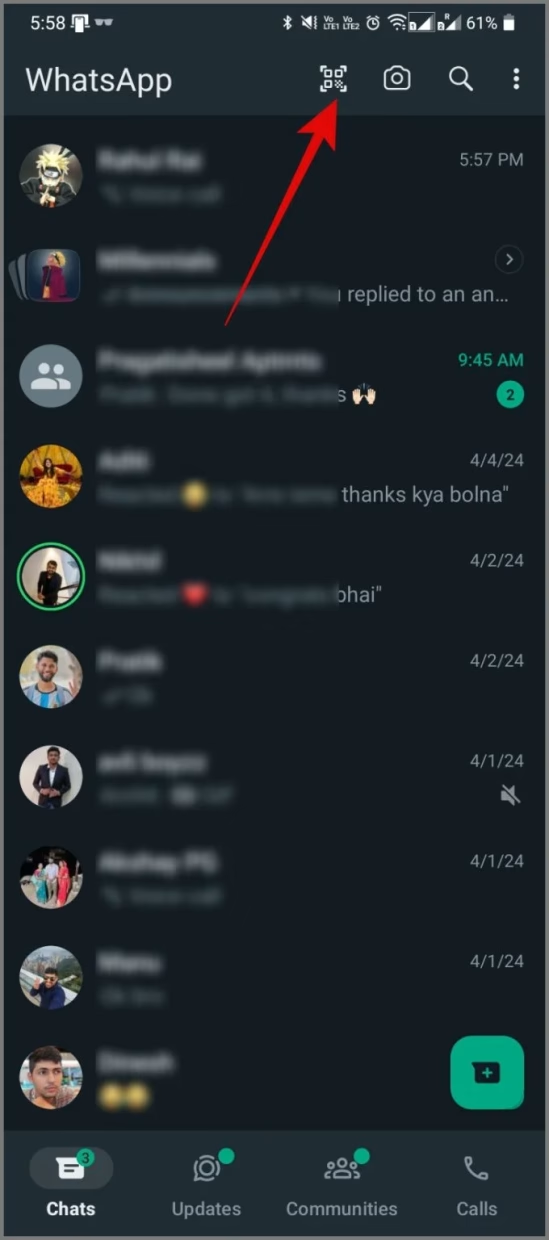
QR Code Scanner Icon (Android): Use this icon to scan the QR code for making online payments through WhatsApp. This feature is exclusive to limited regions though.
Green or Blue Ring/Circle: The green or blue ring encircling the profile picture means the person has added a new WhatsApp status. Tapping on it will show their status, and once viewed, the ring will disappear from your chat screen.
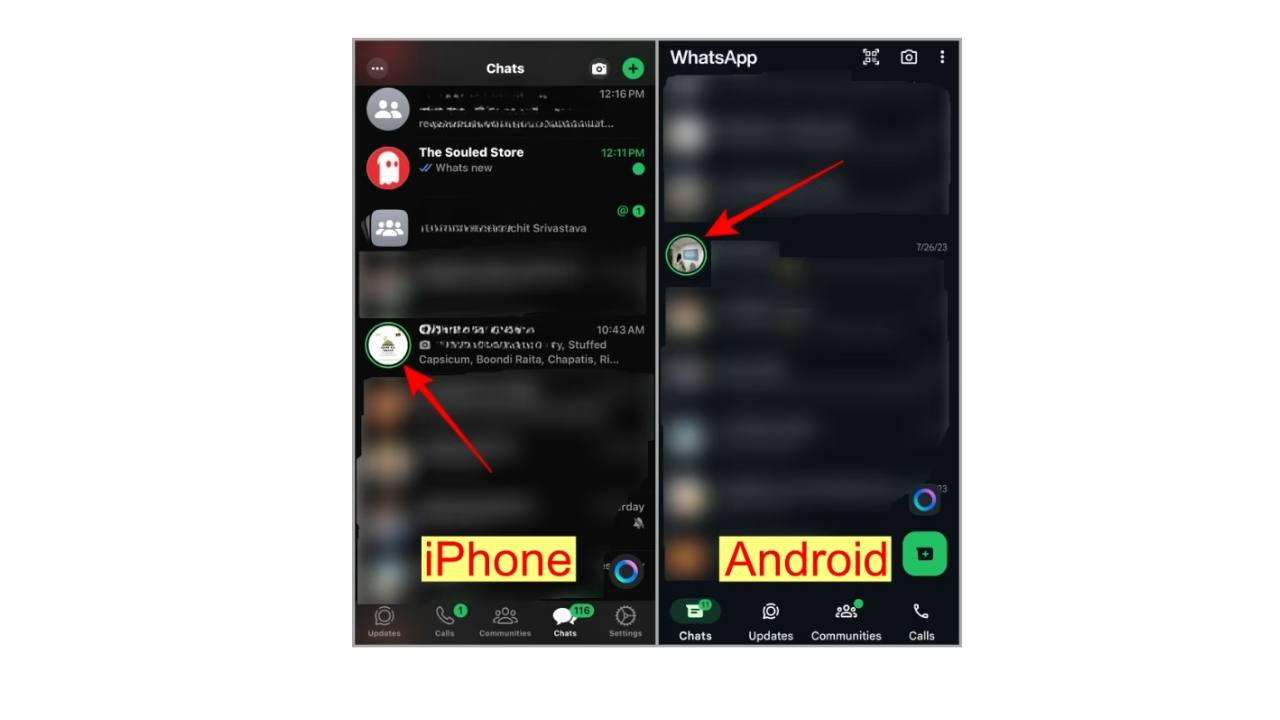
Once you tap the green circle and see the status, the circle will turn grey. You can still watch the status by tapping on the grey circle.
Notification Dots Meaning
Number Inside the Circle: This icon displays the number of unread messages next to the chat.
Green Dot: When a chat displays a green dot but no number, it signifies that you’ve manually marked it as unread.
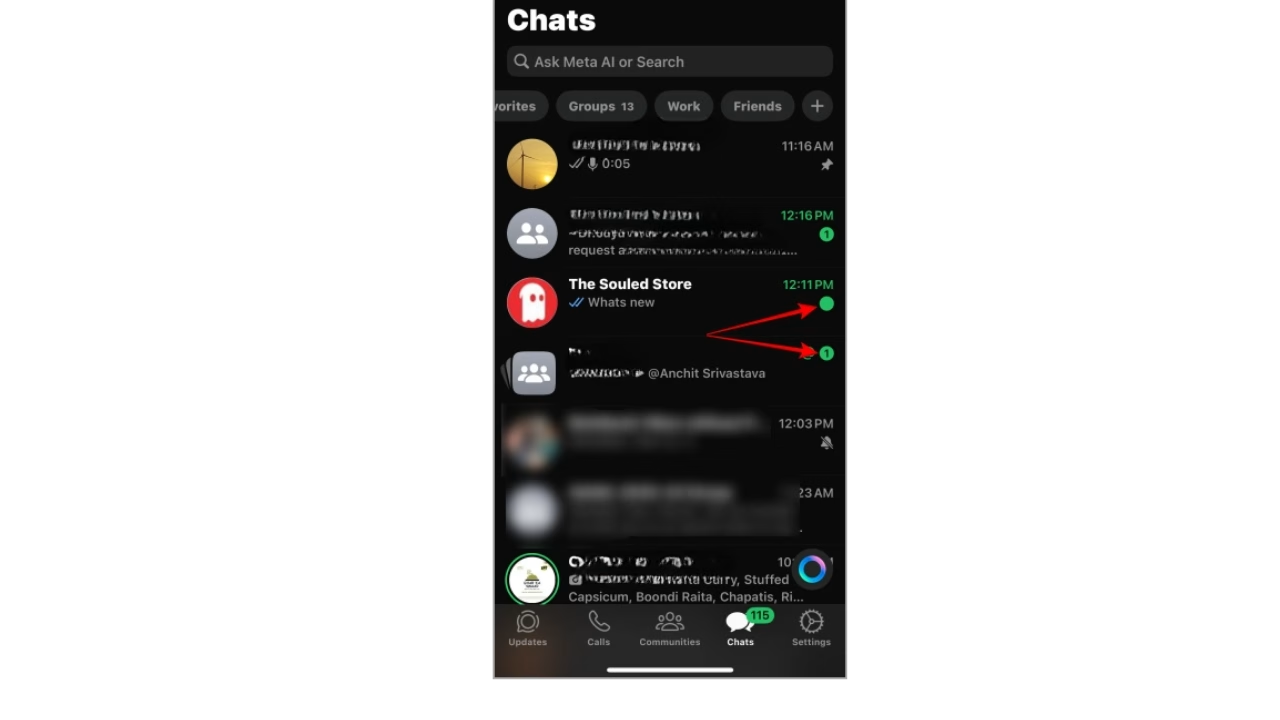
Single Dot Icon (Android): The dot icon above the Updates and Communities tab in WhatsApp means a new message or notification is waiting for your attention.
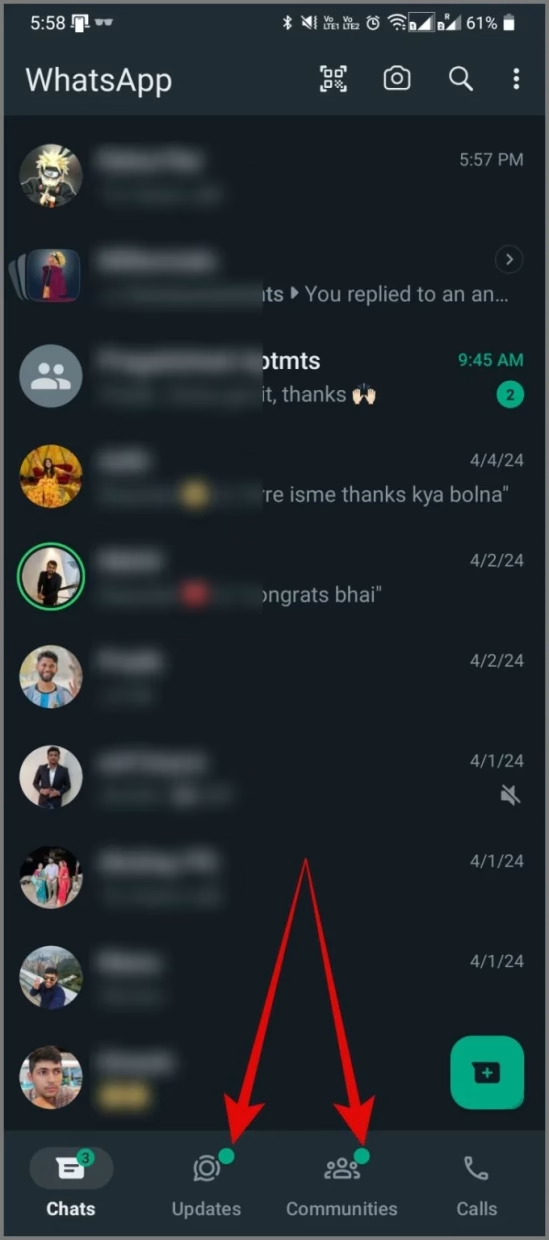
2. Chat Thread Icons Meaning (Android)
You will see the following icons at the top upon long-pressing a chat on the chat list.
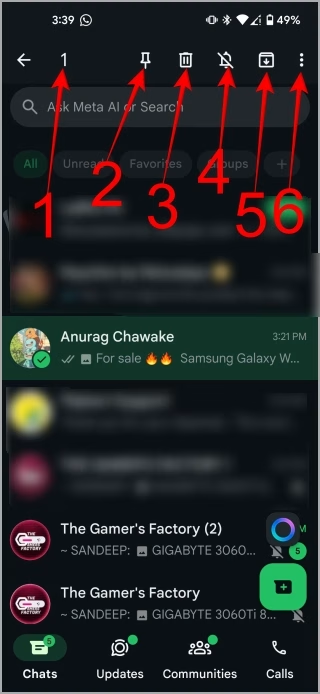
- Chat Selection Number Display: The Number Display indicates how many active chats have been selected from the list of chats available on the chat app. For example if you have two active chats selected it will display a number “2”
- Chat Pin: The Pin icon allows you to pin your chats in the message list, placing them at the top of the list as new messages and chats arrive. Please note that you can only pin a total of three pinned chats.
- Trash Icon: The Trash icon can be used to delete any chat thread from your chat history.
- Mute: The Speaker With the Bar icon Mutes the selected chat. When the selected chat is Muted the Speaker With The Bar icon shows no at/below the bar. To Unmute tap the Speaker icon and it will change to include the bar again.
- Archive: The Box With The Arrow icon archives the chat. Archiving allows you to keep the chat without having it deleted completely.
- Three Vertical Dots Icon: Tapping on the Three vertical Dots icon will show a drop down menu with options related to the selected chat or selected Chats. For example Add Chat Shortcuts, View Contacts, Lock Chat, and so on.
3. WhatsApp Updates Symbols Meaning
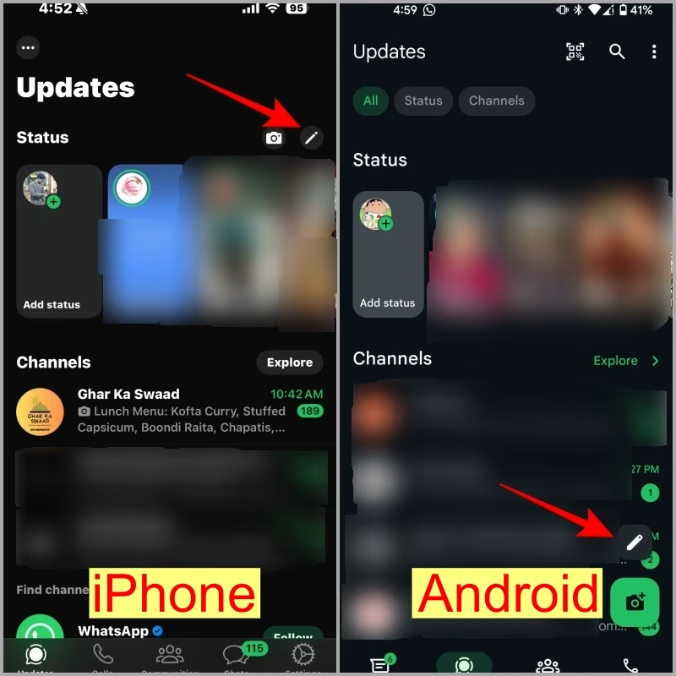
Pencil Icon
The Pencil icon lets you create a text-based status.
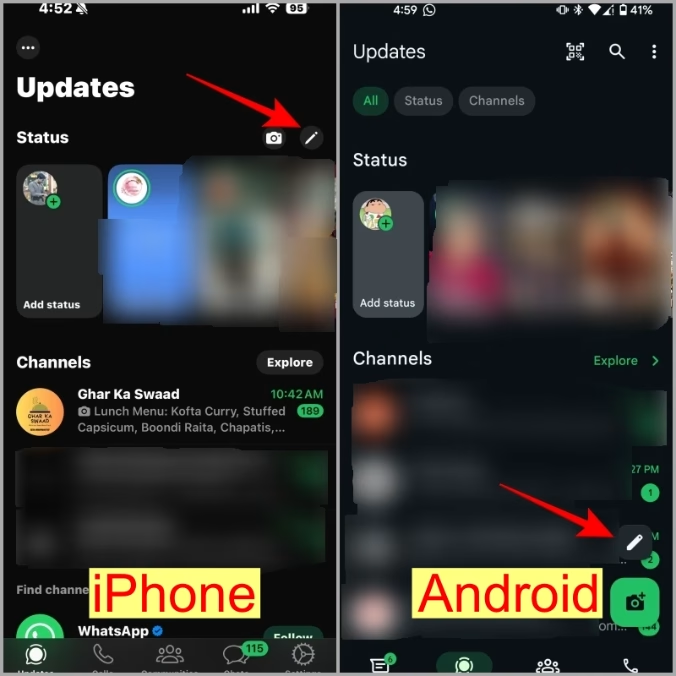
Tapping the Pencil icon will give you various options, such as:
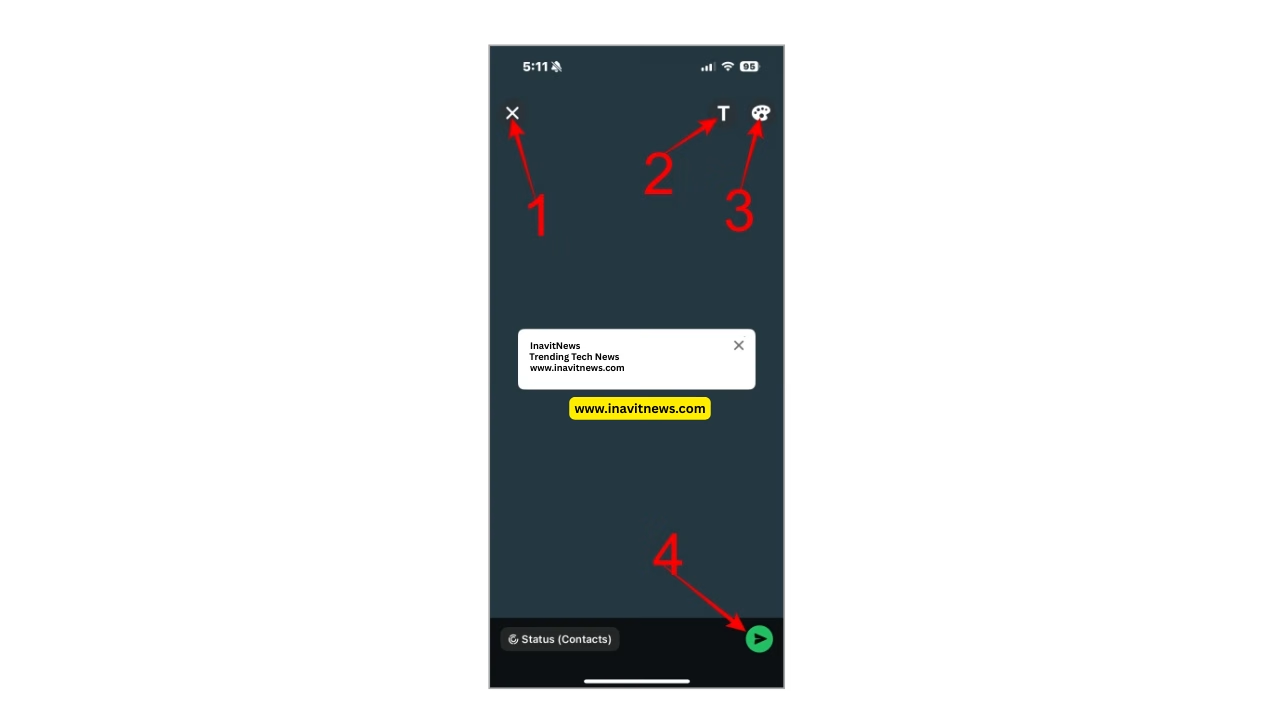
- X: Tap this icon to discard the text status.
- T: Tap on this icon to change the font style of your status.
- Color palette: This icon helps change the background color of the status.
- Paper Icon: Use this icon to publish/share your status.
Camera Icons (Status)
The Camera icon lets you capture a photo or video for your status directly from the status screen.
On the camera page, you’ll find various options, such as:
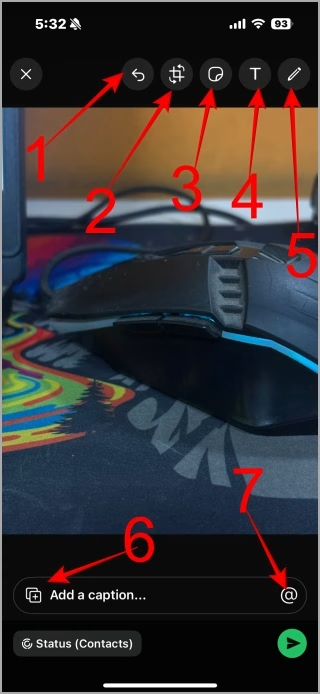
- Undo (Curved Arrow) Icon: Treat this icon as the Undo button. Tapping on it will revert to the most recent action or step taken.
- Crop: This icon lets you crop your image to the desired size. On the cropping screen, press the Rotate or Rectangle icon to rotate your image or change the aspect ratio, respectively.
- Emoji/Sticker: This icon lets you add emojis and stickers to your photo or video.
- Text: Use the T icon to add text to your image.
- Pencil: Press the pencil icon to go into drawing mode. Use your finger to draw on the image.
- Plus in Square Icon: This icon allows you to select and add multiple images or videos to your message at once.
- @ Icon: Use this icon to mention or tag specific people so that they will get a message saying you mentioned them, they can view your status, and they can reshare your status with their audience.
4. WhatsApp Communities Symbols Meaning
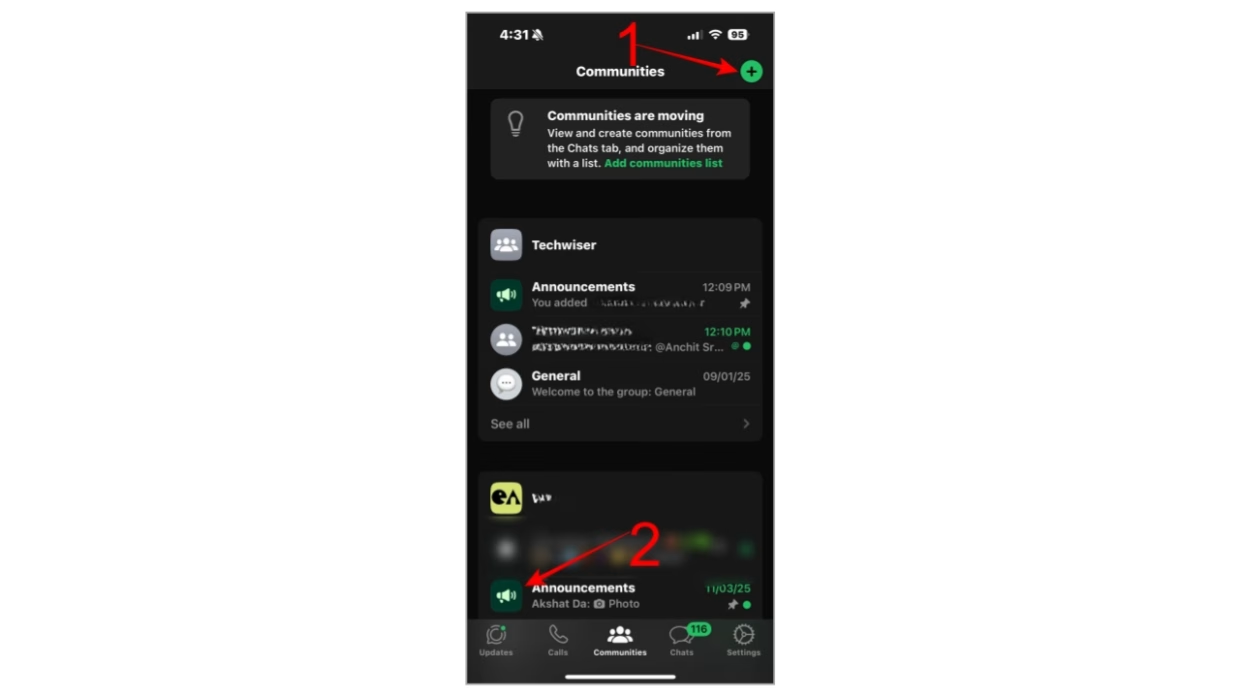
- Plus Sign in Green Circle Icon: Tapping this icon will let you create a new community.
- Loudspeaker Icon: Under each community, you will find one group with the loudspeaker icon. This is the announcement group where admins can broadcast messages to all community members. It acts like a one-way information channel.
Link to related:What do the Symbols and Icons Mean on Instagram
5. WhatsApp Calls Tab Symbols
Under the Calls tab on the home screen, you have the following icons:
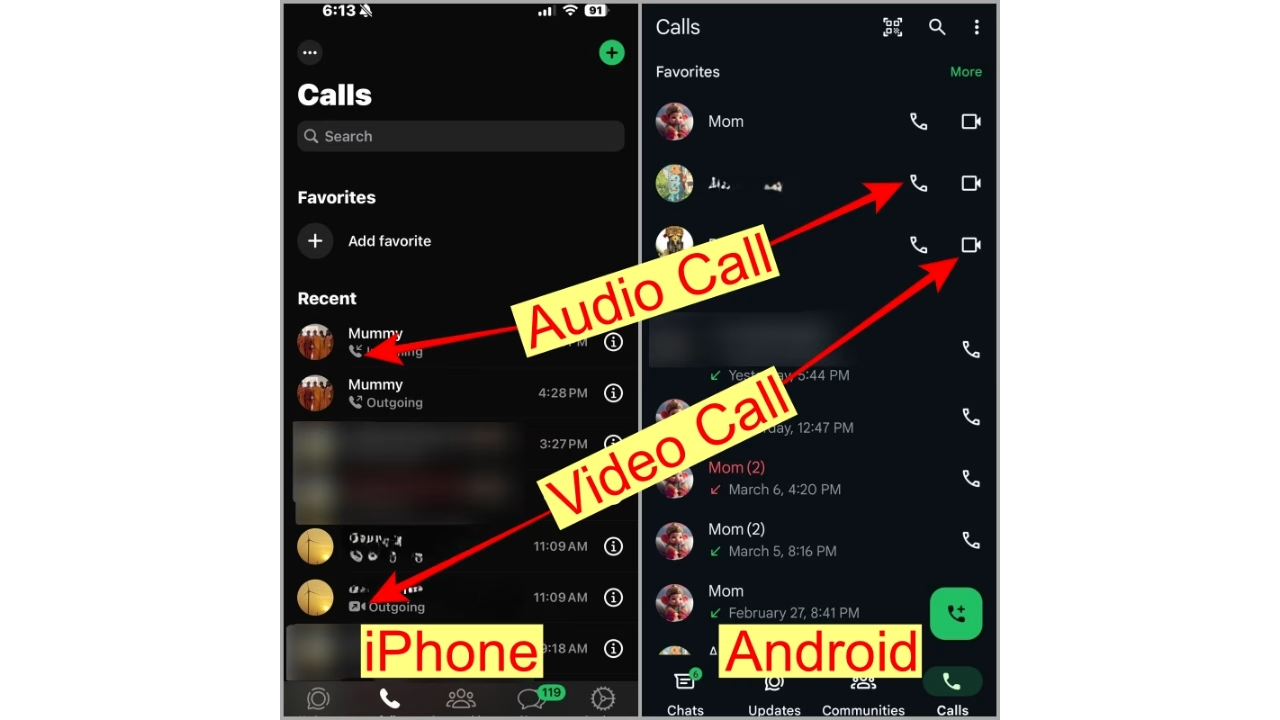
Plus Sign: Use this icon to start a new audio or video call with a contact you choose on the next screen. On Android, the icon appears as a floating bubble, and on iPhone, it’s at the top-right corner.
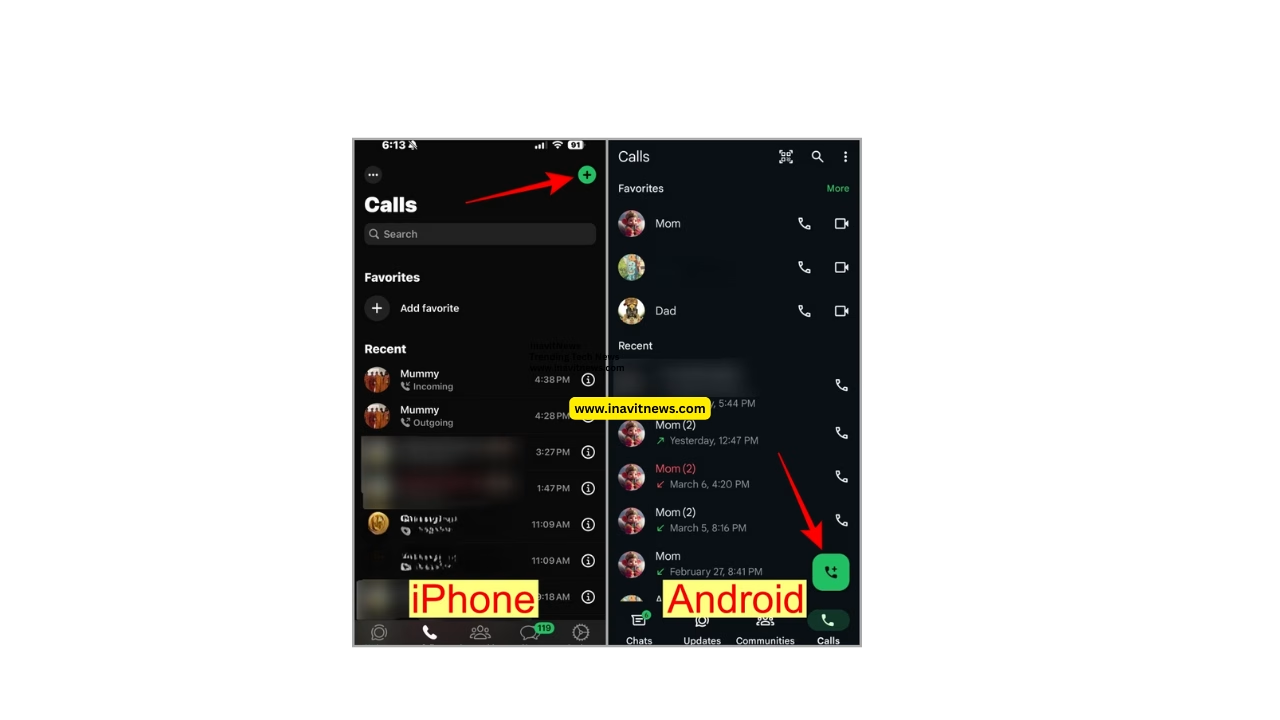
Phone and Video Camera Icon: If you see a phone icon next to a contact in your call history, it means you had an audio call with them. If there’s a video camera icon, it means you had a video call with them.
6. WhatsApp Delivery Symbols Meaning
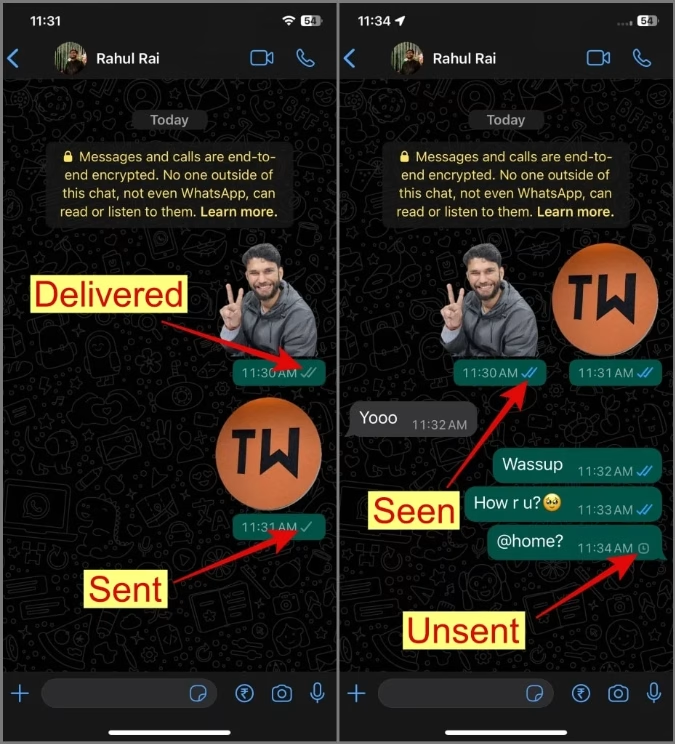
- Single Grey Tick: Message has been sent from your end, but it’s yet to be delivered to the recipient.
- Two Grey Ticks: Message has been delivered but hasn’t been seen yet.
- Two Blue Ticks: The dreadful blue ticks mean that the message has been seen by the recipient.
- Clock Symbol: The clock symbol next to your message indicates that the message hasn’t left your device. It could be due to a network issue on your phone.
GPS, short for Global Positioning System, is a satellite system-based navigation tool of the United States Space Force that uses satellite signals (which are located in space) to determine accurately the exact location of a person on earth and beyond.
Contents
- Breaking Down “Global Positioning System”
- A Quick History of GPS Development
- How GPS Works: Step-by-Step Breakdown
- GPS Applications in Daily Life
- GPS Accuracy and Limitations Explained
- GPS vs. GNSS: Key Differences
- Fun Facts and Future of GPS
- Conclusion: Why GPS Matters Today
- Frequently Asked Questions
Originally created for military applications, GPS is now used as a technology for everyday devices such as smartphone navigation and ride sharing to provide assistance to billions of users worldwide.
Breaking Down “Global Positioning System”
“Global” highlights worldwide coverage from at least 24 satellites in medium Earth orbit, ensuring visibility from any point on the planet.
“Positioning” calculates exact latitude, longitude, and altitude via trilateration—measuring signal travel time from satellites to your receiver.
“System” refers to three segments: space (satellites), control (ground stations tracking orbits), and user (receivers in phones or cars).
Link to related: Full Form RSVP: Meaning & Usage Explained
A Quick History of GPS Development

GPS originated in the 1970s amid Cold War needs for precise military navigation, combining ideas from earlier systems like TRANSIT and Timation.
The first prototype satellite launched in 1978; full operational capability arrived in 1995 with 24 satellites. President Reagan opened civilian access in 1983 after a tragic airliner incident, and Selective Availability—intentional accuracy limits—was removed in 2000.
Key figures include Bradford Parkinson (“Father of GPS”), Roger L. Easton, and Gladys West, whose geodetic models enabled precision. Today, over 30 satellites operate, with GPS IIIF launches planned for enhanced signals by 2027.
Link to related: OK Full Form: What Does OK Really Stand For?
How GPS Works: Step-by-Step Breakdown
GPS satellites, equipped with atomic clocks, broadcast signals containing their position and precise time. Your receiver needs signals from at least four satellites to solve for location.
It measures time-of-flight (TOF) delays—since signals travel at light speed, TOF equals distance. Trilateration intersects these distances: three spheres for 2D position plus altitude, fourth corrects receiver clock errors.
Atmospheric interference or urban canyons can degrade signals, but modern receivers use multi-frequency bands (L1, L5) for 30 cm accuracy, or cm-level with RTK/DGPS.
GPS Applications in Daily Life

- Navigation: Apps like Google Maps reroute around traffic, saving time on commutes or road trips.
- Fitness Tracking: Wearables log runs, hikes, or cycles with elevation data for precise stats.
- Logistics: Ride-hailing matches drivers via real-time tracking; delivery firms optimize routes.
- Emergency Services: eCall systems auto-share crash locations, speeding response.
In agriculture, GPS guides autonomous tractors; surveyors achieve sub-cm precision.
Link to related: Full Form of SOS: Meaning, History & Morse Code Explained
7. WhatsApp Video Call Screen Icons
When you are on a WhatsApp video call, you will be greeted by the following icons:
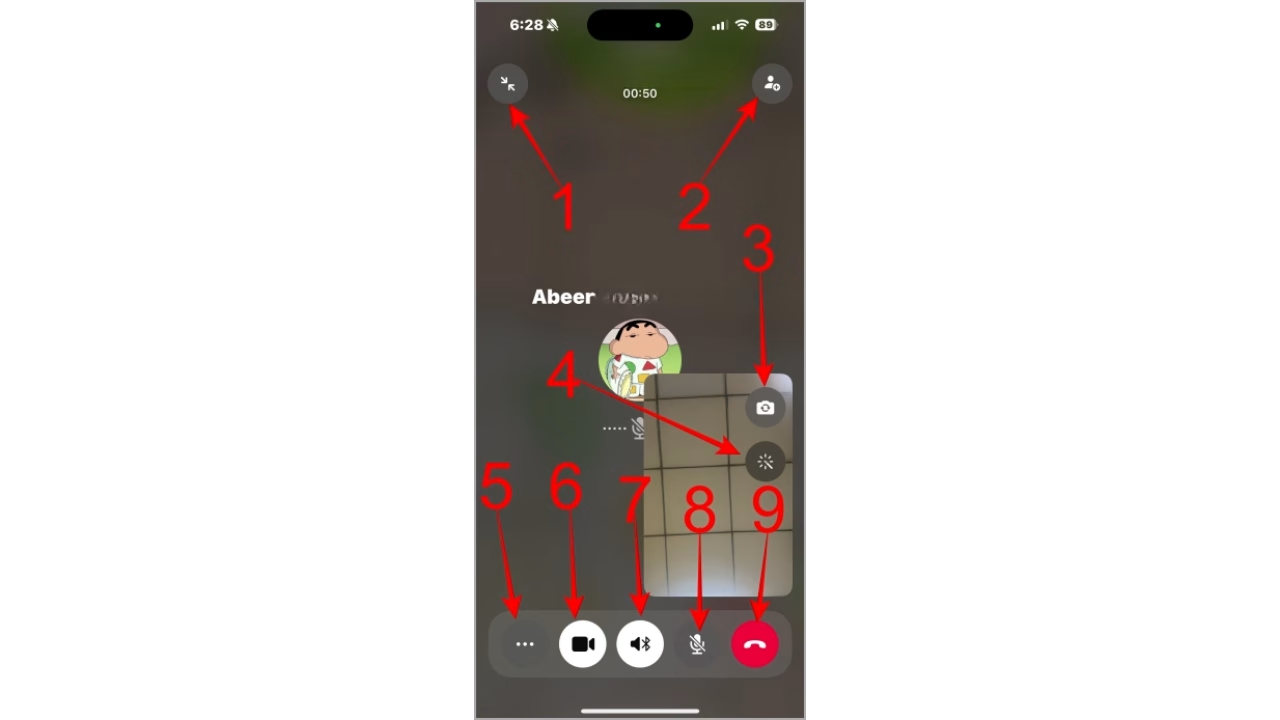
- Minimize (Two Arrows Pointing Each Other) Icon: This icon allows you to minimize the video/audio call screen, enabling you to navigate to other apps or parts of WhatsApp while the call continues in a smaller window.
- Person With a Plus Sign: Add more people to the ongoing video/audio call on– lets you create a group call.
- Flip (Camera With Rotating Arrow) Icon: This icon lets you switch the camera between front and rear.
- Filters (Magic Wand) Icon: Tapping this icon opens the filters menu, where you can add various filters, effects, backgrounds, and more to enhance your video call.
- More Options (Three Horizontal Dots) Icon: This icon opens a menu with additional options during the video/audio call, including “Share Screen” and “Send Message.
- Video Camera Icon: Use this icon to turn the video on or off. If the icon is highlighted, that means the video is off.
- Bluetooth Icon: Tapping this icon will switch the audio from your phone to your Bluetooth device.
- Microphone: This icon lets you turn the microphone on or off. If highlighted, it means off.
- Red Phone: Use this icon to hang up or disconnect the call.
Also, you might notice a green dot near your camera, which indicates that the camera is turned on.
Video Filter Icons Meaning
When you are using the video filters feature in a WhatsApp video call, you will be greeted by the following icons:
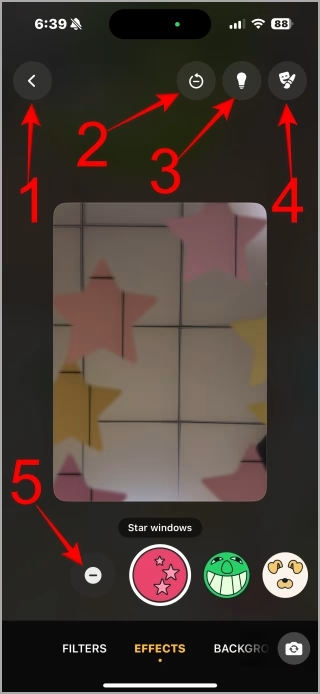
- Back Arrow Icon: This icon allows you to return to the main video call screen.
- Remove (Minus in Circle) Icon: Tapping this icon removes any currently applied filters, effects, or backgrounds from your video.
- Low Light Mode (Bulb) Icon: This icon enables low light mode, which brightens your video in dimly lit environments.
- Touch Up Mode (Mask and Paintbrush) Icon: This icon activates the touch-up mode, which applies subtle enhancements to your face during the video call.
- No Filter Icon: Tapping this icon removes all applied filters.
8. WhatsApp Audio Call Icons
The audio call screen has similar icons to video calls, so we will only cover the differences specific to audio calls.
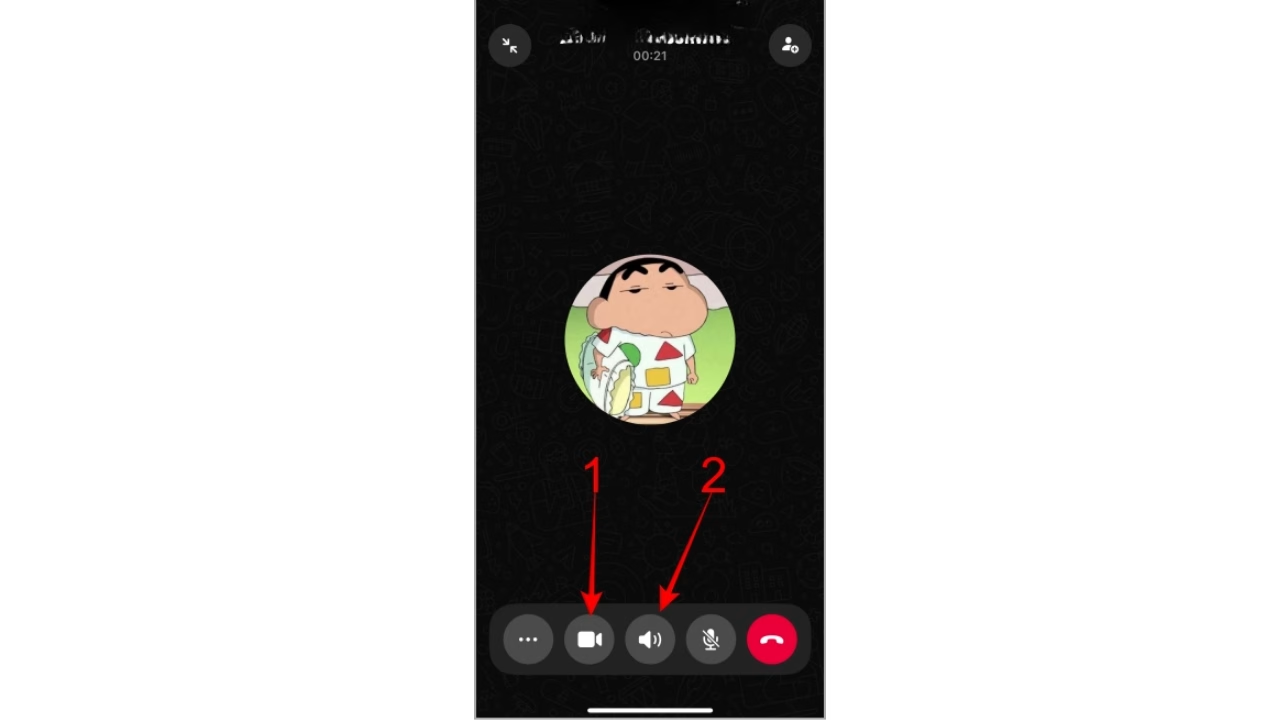
- Speaker Icon: Tapping it will switch the audio from the phone’s earpiece to the speaker.
- Video Camera: Switch from an audio call to a video call.
Link to related: Full Form RSVP: Meaning & Usage Explained
9. WhatsApp Chat Symbols Meaning
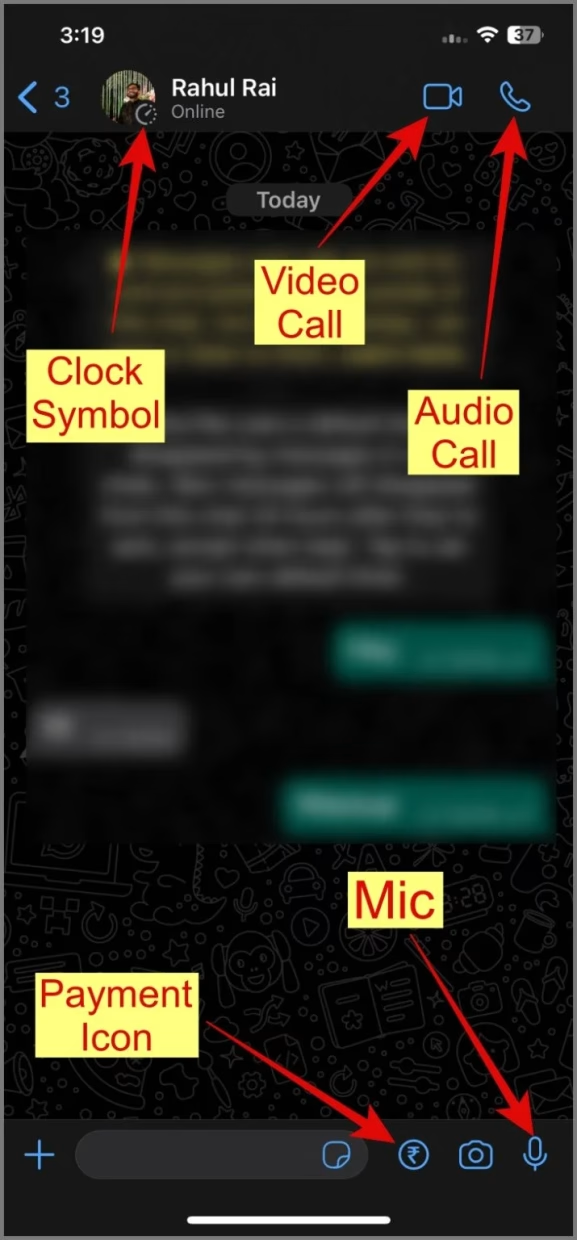
- Clock Symbol Next to Profile Picture: You will see a clock icon next to the contact or group’s picture when disappearing messages are enabled for that chat. The Disappearing messages will vanish automatically after the set time.
- Audio and Video Call: Right next to the person’s name, you will find the camera and phone icons. Use the camera icon to start a video call with the person and the phone icon to initiate an audio call.
- Payment Icon: The money icon lets you send money through WhatsApp in supported countries.
- Microphone: It lets you send voice notes. Press and hold it to start recording. Release the finger to send the audio note. Slightly swipe your finger up toward the lock icon while recording to reveal more options.
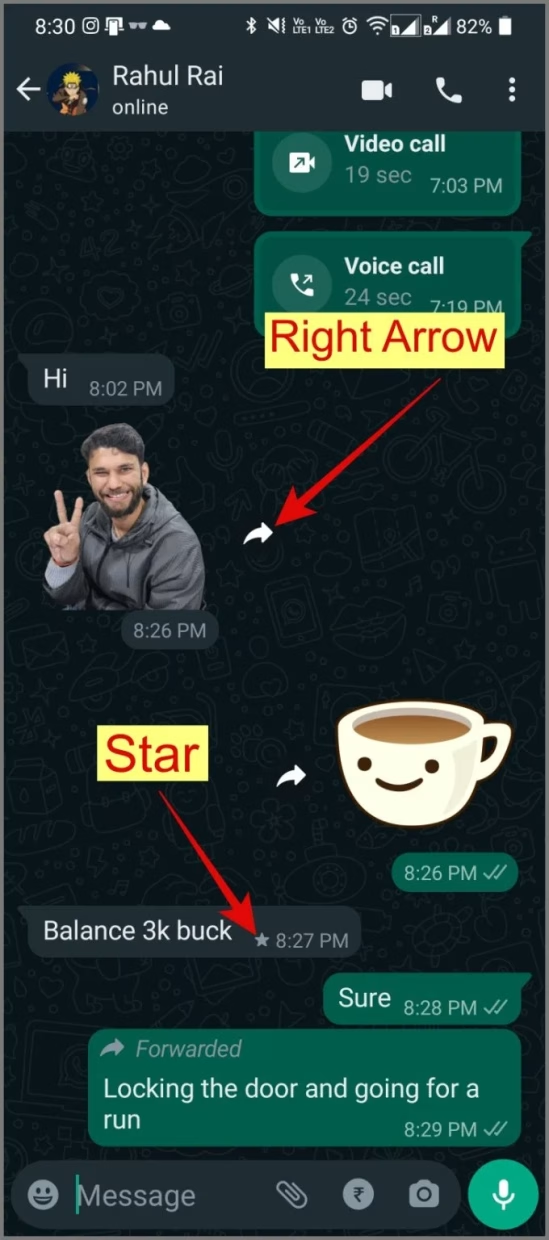
- Right Arrow: This icon appears next to the media files in a chat. Tap on it to forward the media to more WhatsApp contacts.
- Star Icon: This icon is like a special mark that shows you’ve saved a message to find it easily later. To star or unstar a message, touch and hold it and press the Star icon.
To view starred messages on Android, tap on the three-dot icon on the chat list screen and select Starred messages. On iPhone, open Settings > Starred messages.
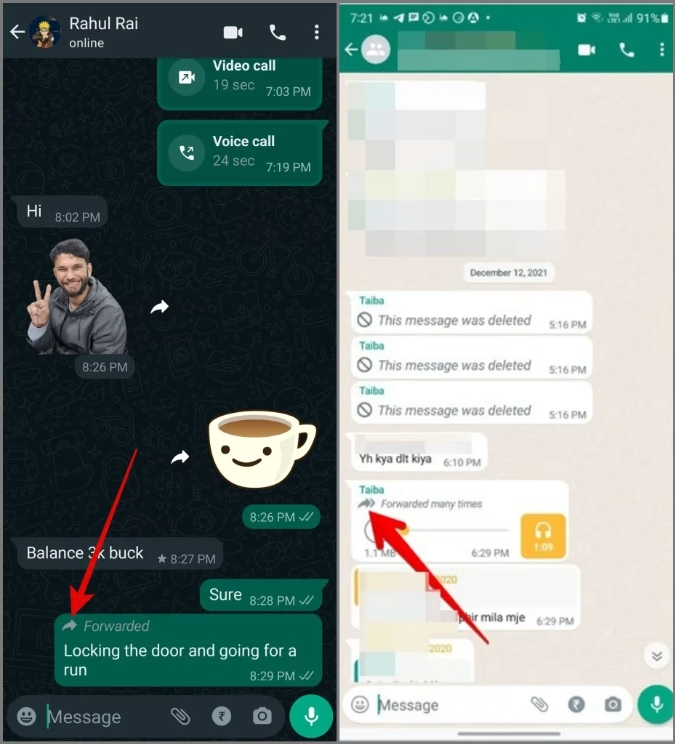
Right Arrow: When you see a message with a right arrow icon, it indicates that the message has been forwarded. If you notice a double arrow icon, it means the message has been forwarded multiple times.
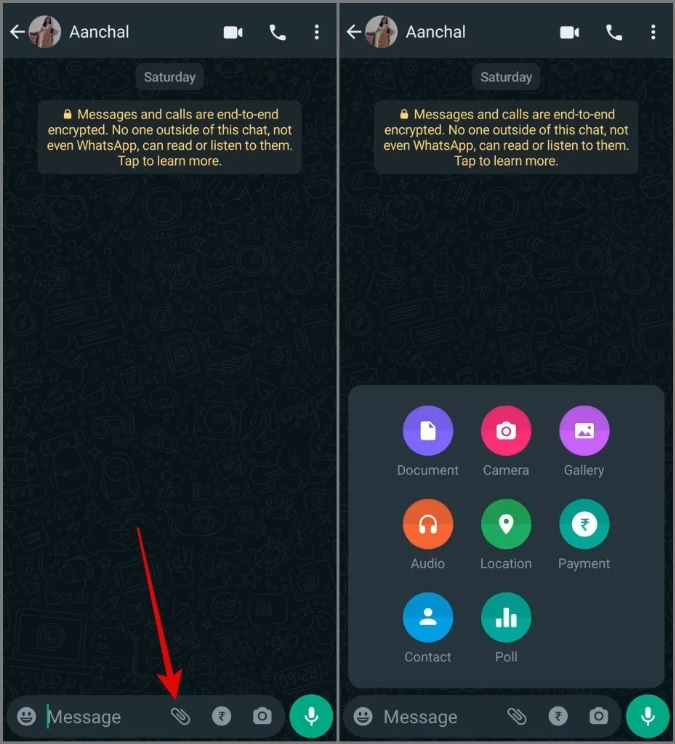
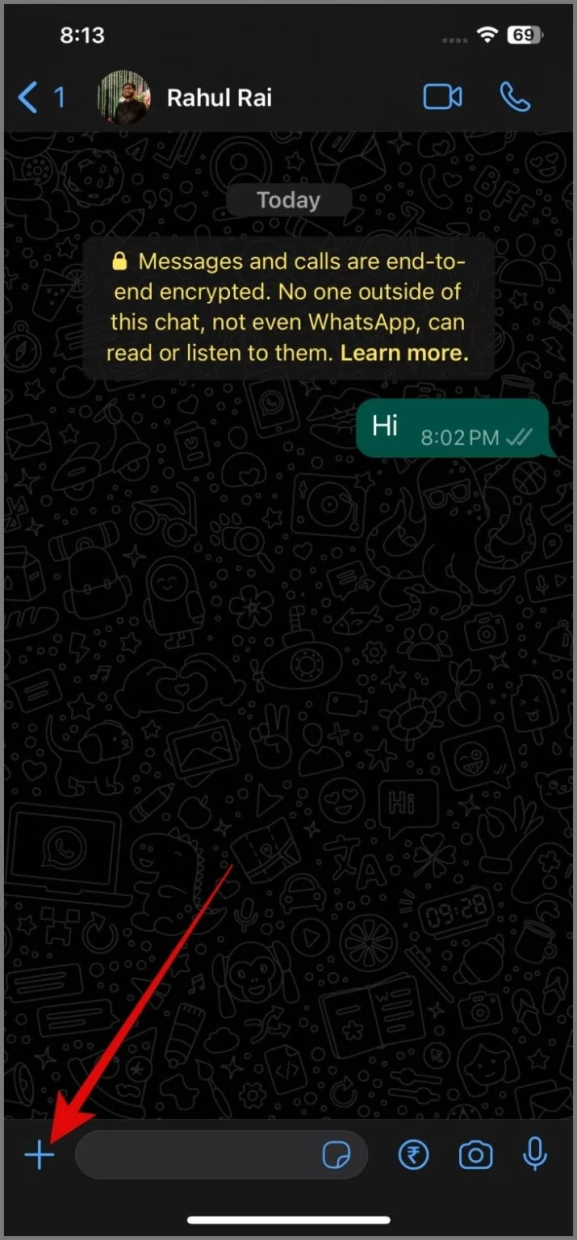
Paper Clip or + Icon: This icon, next to the typing area, enables you to attach and send documents, images, audio files, locations, or contacts to the recipient.
On iPhone, you will find these two options under the ‘+’ icon.
Business Account with Catalogue Icons Meaning
When interacting with business accounts on WhatsApp, you might encounter some unique icons like the Catalog Icon and more inside this section:

- Catalog (Hut) Icon: When viewing a business account, this icon represents the business’s product catalog. Tapping it allows you to view the items and services offered by the business.
- Cart Icon: Located at the top of the catalog screen, this icon displays your shopping cart. Tapping it shows all the items you’ve added to your cart by using the plus icon next to each item.
- Three Dot Menu Icon: the top of the catalog screen, this icon opens a menu with additional options, such as forwarding or sharing the catalog with other contacts.
- Plus Icon: Found next to each item in the catalog, this icon allows you to add that specific item to your shopping cart.
10. WhatsApp Chat Camera Icon Meaning
It resembles the camera icon you saw on the WhatsApp status page, but with a few additional features we’d like to mention, such as:
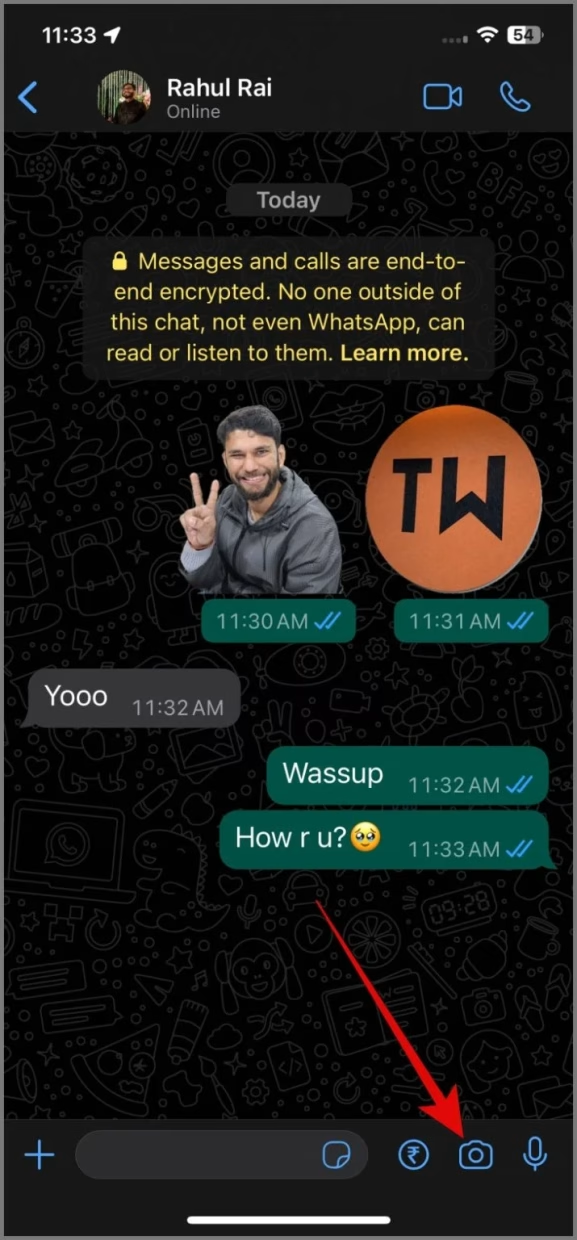
you open the camera within a chat to send a photo or video, you’ll see the following icons:
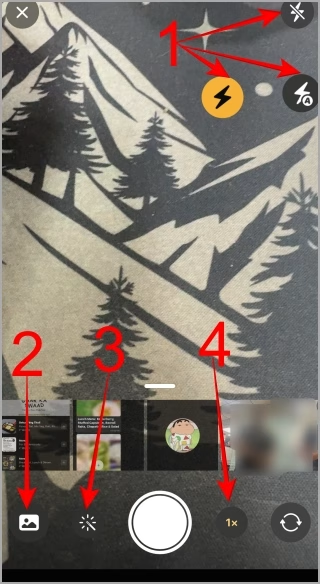
- Flash (Thunder) Icon: This icon controls the flash. If the flash is off, the icon will have a line strike through it. When the flash is on, the icon turns yellow. If the flash is set to automatic, it displays an “A” with the thunderbolt symbol.
- Gallery (Picture) Icon: Tapping this icon allows you to select images or videos from your device’s gallery to send in the chat.
- Filter (Magic Wand) Icon: This Similar to the icon in video calls, this icon opens a filter menu, allowing you to apply various effects to your photos or videos. Note that unlike video calls, this mode includes a flash option.
- Switch Lens (1x) Icon: This icon allows you to switch between the different lenses available on your device’s camera.
Now, let’s cover the section of icons we encounter after we capture an image:
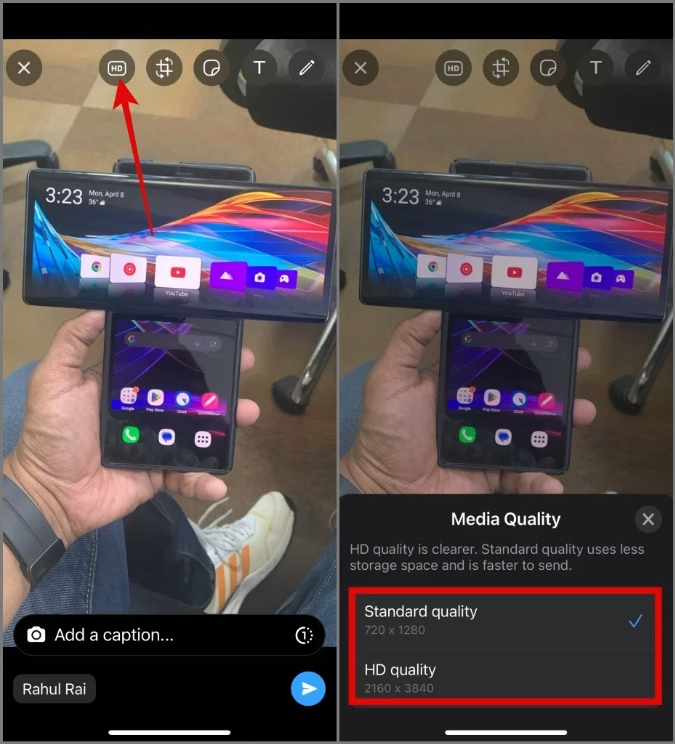
HD Icon: Tap this icon to choose whether to send the image in standard quality or high-resolution quality.
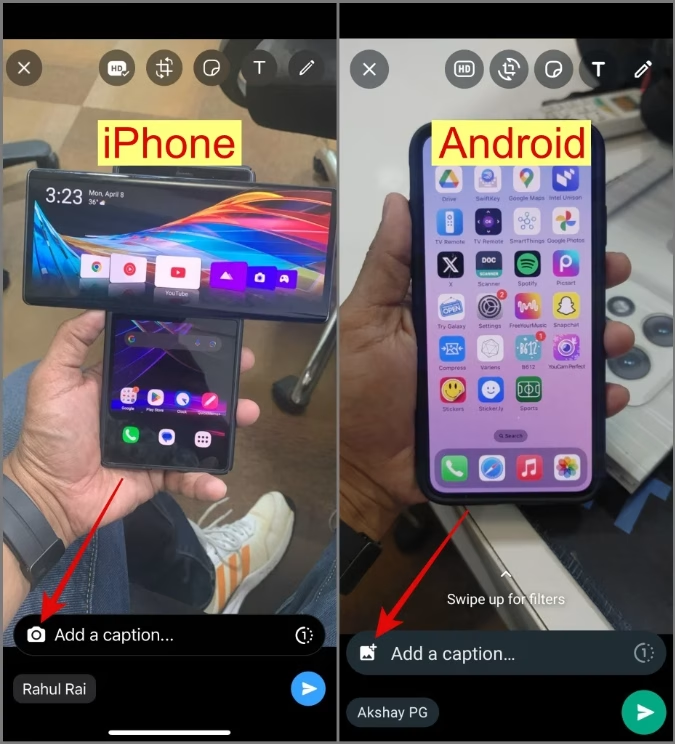
Camera/Gallery Icon: This icon, next to the Add a caption box lets you select more images that you can upload to your status in one go.
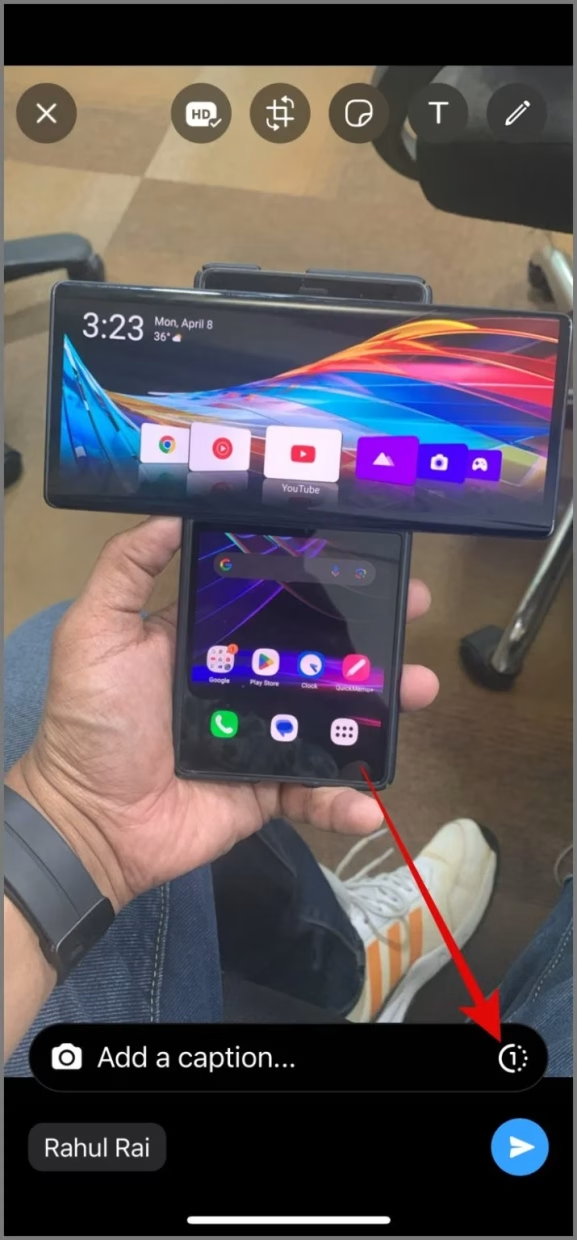
(1): When sending a photo or video, a (1) icon appears in the Add a caption box. This icon lets you set the media to View once mode, which disappears automatically after viewing.
11. WhatsApp Voice Note Icons
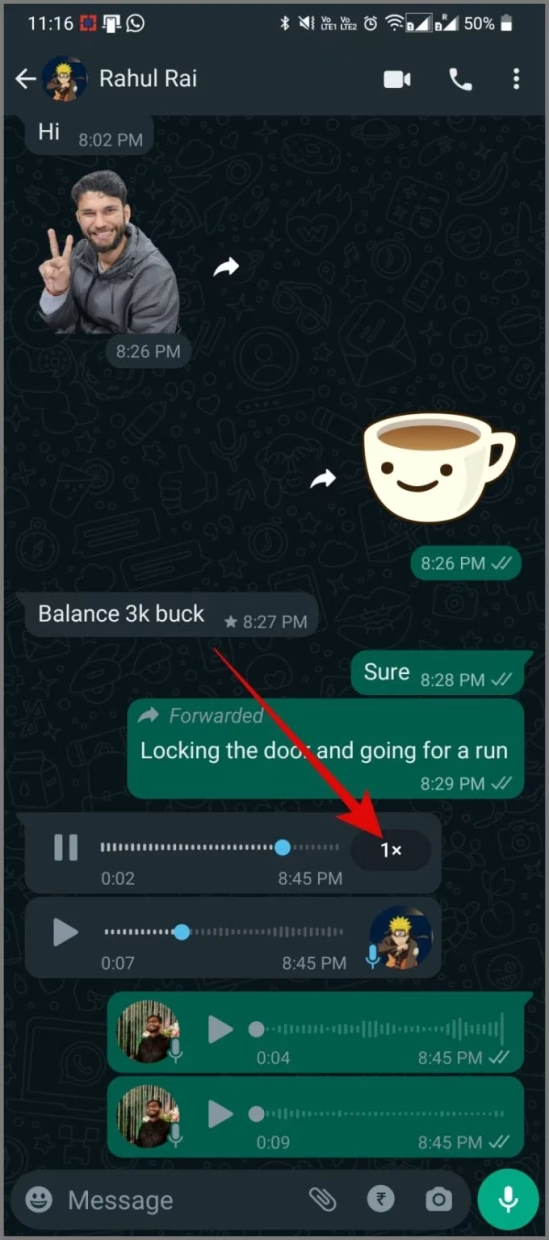
When you send voice notes, the small circle on the voice note slider starts as gray. On the other hand, when you listen to someone else’s voice notes, it changes from green to blue.
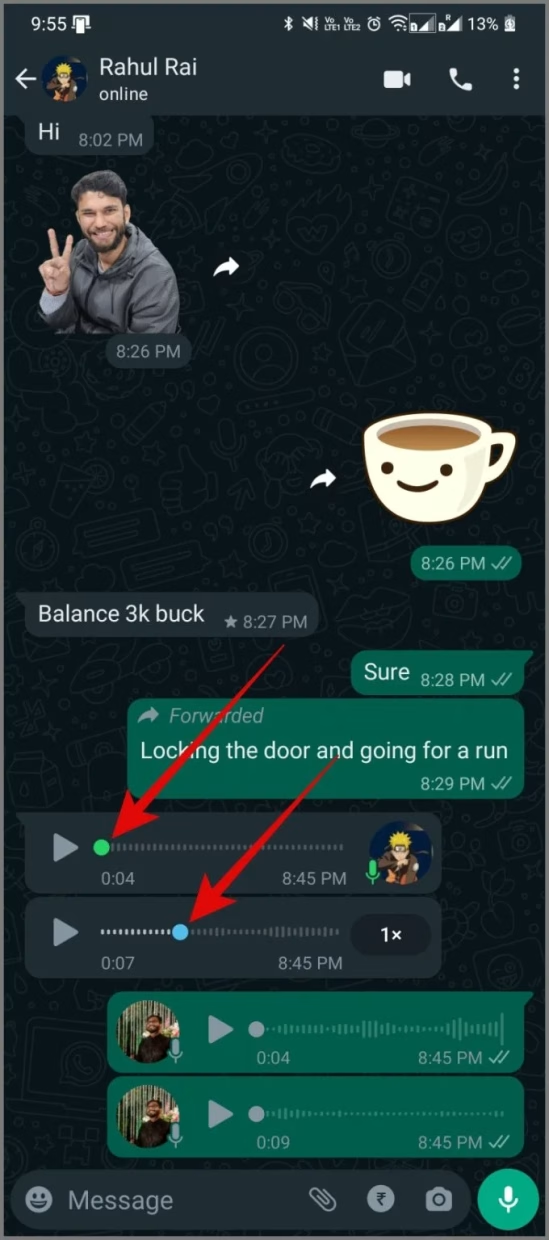
1x Symbol: The 1x symbol next to WhatsApp voice messages lets you increase their speed. Press on 1x to hear a voice note at 1.5x or 2x speed.
Secure WhatsApp
I hope all your queries regarding WhatsApp symbols and icons were covered in this post. Now that you have become proficient in using WhatsApp, it’s time to learn about the important WhatsApp privacy settings to secure your account.
✅ Conclusion
WhatsApp icons and symbols may look small, but they play a huge role in how you communicate every day. From message delivery ticks and status rings to call controls, privacy indicators, and business catalog icons—each symbol has a clear purpose designed to make WhatsApp faster, safer, and easier to use.
❓ Frequently Asked Questions (FAQs)
Two blue ticks mean that the recipient has read your message. If read receipts are turned off, you may not see blue ticks.
A single grey tick means the message has been sent from your phone but not yet delivered to the recipient. This could be due to network issues or the recipient’s phone being off.
It indicates that the person has posted a new WhatsApp Status. Once you view it, the ring turns grey.
The clock symbol shows the message is still sending and hasn’t left your device, usually because of a poor internet connection.
A green dot without a number means you’ve manually marked the chat as unread.
The Meta AI icon gives access to Meta’s AI assistant, which can help answer questions, generate content, summarize chats, and fetch information from the web.
In group chats and statuses, the @ symbol lets you mention specific people, sending them a direct notification.
The pin icon lets you pin chats or messages so they stay at the top. You can pin up to three chats at a time.
9. What does the disappearing messages clock icon mean?
It means disappearing messages are enabled, and messages in that chat will automatically delete after the set time.
The 1x icon controls voice note playback speed. Tapping it switches to 1.5x or 2x speed.