The inclusion of new icons/symbols frequently happens on Instagram. Some of these icons are easily recognizable whereas some will be hard to determine what they mean if you are new to using Instagram. I’ve created a page to help you identify Instagram Symbols, along with their meanings.
Note: The actual position of Instagram icons and symbols may vary on your phone. Instagram keeps changing the position of icons, but the meaning remains the same.
1. Instagram Home Screen Symbols Meaning
Icons at the top of the app
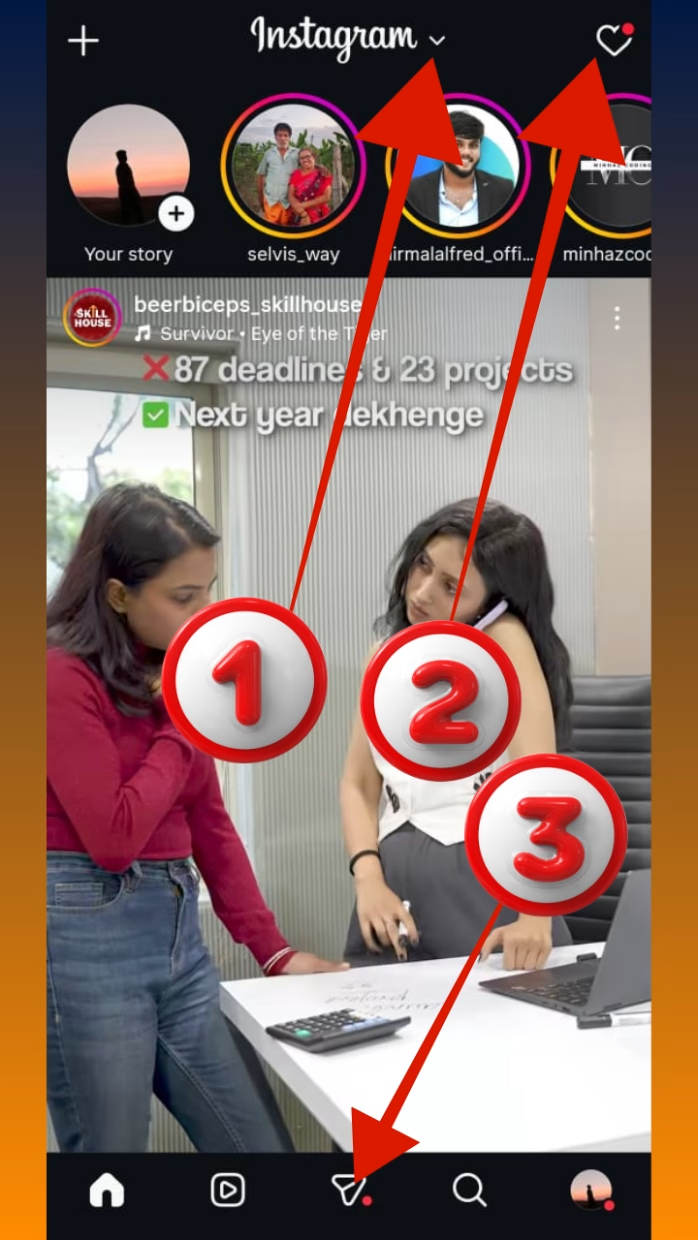
- With the Arrow icon, you can choose between two feeds. The Following Feed displays posts from users you are following and the Favorites Feed displays only posts from people you have marked as “favorite” (these will be highlighted in your profile).
- On both of the feeds, the heart icon with a red dot above it is your Instagram notification indicator. The red dot represents that you have unread notifications.
- When you click the Inbox icon (which looks like a lightning bolt in a speech bubble), you go directly into your Instagram Direct Messages inbox. In this inbox, you will find all of your direct messages from other Instagram users. You will also see a number inside a red circle that represents how many unread messages you have received.
Link to related: Full Form RSVP: Meaning & Usage Explained
Icons at the bottom of the app
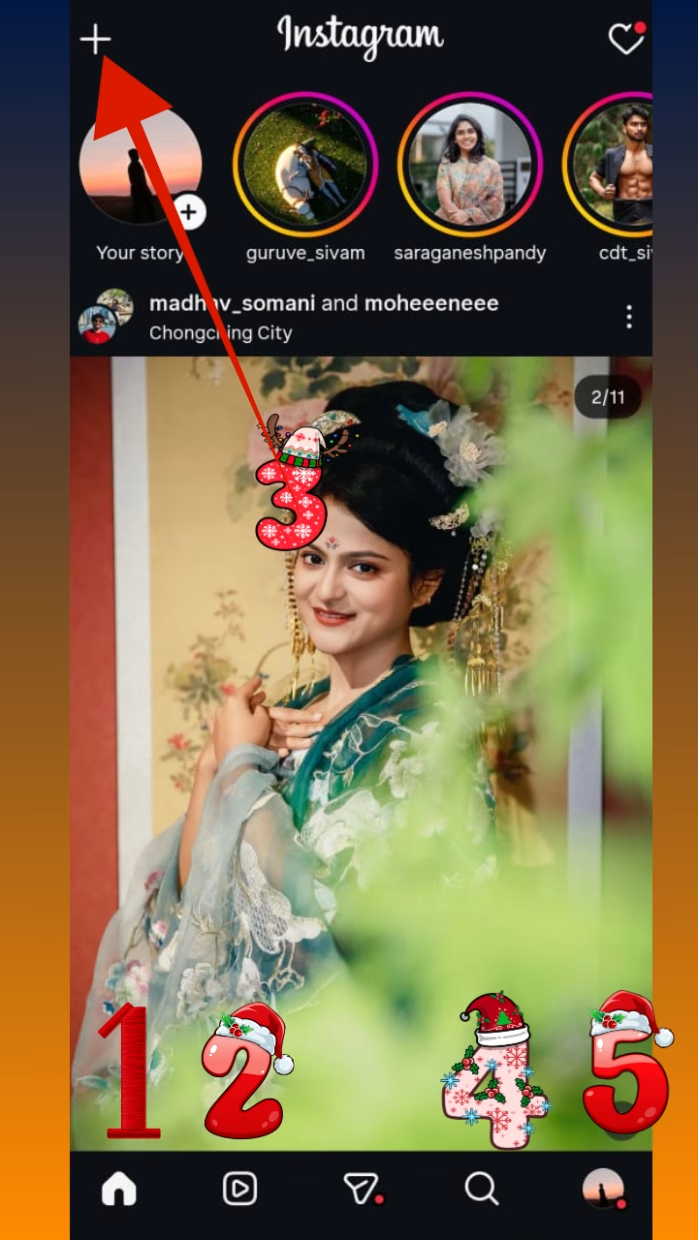
- Home Button: When you click on it, it will take you back to your Instagram feed from any area of the application. If you’re already in your feed, clicking it will scroll back to the top of your feed.
- Reels Button: Clicking this button will show you all the Reels available in the Reels feed. Swipe up to see the latest Reels.
- Plus Sign Button: This button will allow you to create a new post, story, live video, or Reel.
- Search/Explore Button: Clicking this will take you to the Explore page where you can see videos and photos that are based on what Instagram thinks you might want to watch and/or look at based on your interests and activity on their site. Click in the search bar from this page to search on Instagram for reels, posts, profiles, etc.
- Profile Picture Button: When you click on this picture, it will direct you to your Instagram profile page. Long pressing this button will bring you to a list of all Instagram accounts you have created; it also lets you switch from one Instagram account to another using that list. The red dot next to this button indicates that there are notifications for you, or that there is a pending update to your information on Instagram.
2. Meaning of Symbols on an Instagram Post
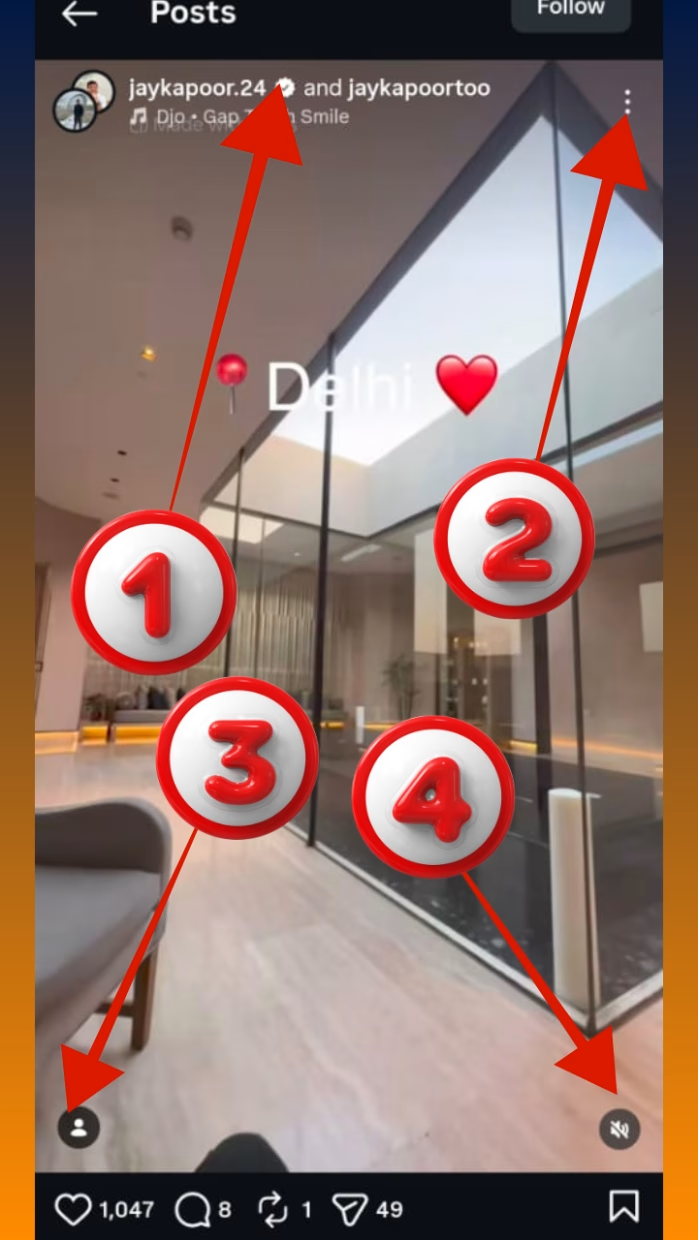
- Checkmark Icon: Denotes that this profile is authentic and verified by the company.
- Three-Dots Icon: Indicates that there are multiple options available for this post; including “Remix”, “QR Code”, “Unfollow” and “Hide”, among others.
- Person Icon: Denotes that you have been included or “tagged” in this post.
- Loudspeaker Icon: Indicates whether or not this post has been turned off (muted). If it has a stroke through it, you will not hear any audio when viewing this video.
Icons Below the Post

- The heart icon is the standard Like indicator; once pressed, the heart turns red and provides a Like to the selected photograph. You can also like a photograph by double-tapping on the image. You can also view all of the photographs you have liked in your account. In addition, you can hide likes from your posts on your Instagram Account if desired.
- The chat bubble icon is used to view all comments under your photo and write new comments. You may learn how to view all of your comments made on Instagram.
- The Paper plane icon can be used to share or save an image, and you can add to your Instagram story with this icon.
- The bookmark icon enables you to save your images to a collection.
Link to related: Full Form of SOS: Meaning, History & Morse Code Explained

3. Instagram Message Icons Meaning
Icons on Instagram Chat List Screen
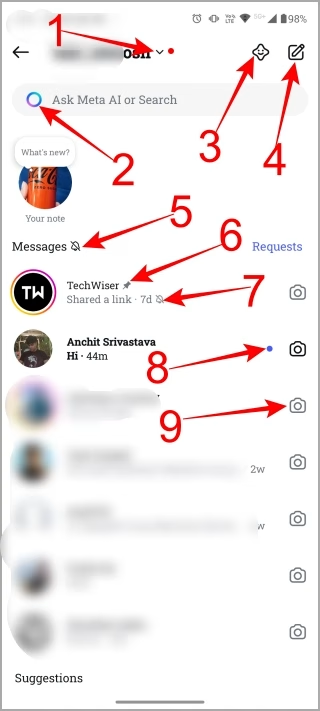
- Red Dots: mean that you have unread messages in the other accounts.
- The Meta AI (Gradient Circle) icon: allows you to chat with Meta AI directly from Instagram through the chat feature, which provides you with another way to interact with Meta’s AI assistant.
- The Chat with AIs (Smiley inside a star) icon: enables you to chat with several different AIs built by users on Instagram as well as to create your own AI.
- A Pencil icon: indicates that you are going to start a new Personal or Group chat.
- The Mute (Bell with a Slash) icon: means that your messages will not provide notifications to you anymore.
- The Pin icon: indicates that the particular chat has been pinned to the top of your chat list.
- Mute (Bell With a Slash) Icon: indicates that the recipient has muted the chat.
- Unread Message (Blue Dot): indicates that the message has not yet been opened by the recipient.
- The Camera icon: adjacent to the message thread allows the sender to send either a regular or disappearing photo directly from the Chat list.
Icons Inside an Instagram Chat
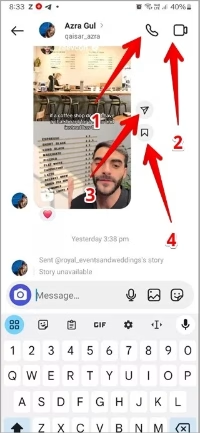
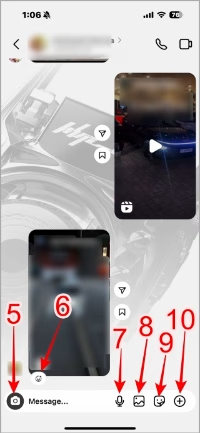
- Phone Symbol – An icon that is designed to initiate an audio call with a follower; the number of icons available for this purpose depends on whether they follow you, and whether they have a valid phone number associated with their account.
- Video Camera Symbol – An icon that will trigger a video call if you wish to do so.
- Paper Plane Symbol – This icon has a function to share or send a photo/video to another user of Instagram.
- Bookmark Symbol – This is the same as the Paper Plane Symbol, except you use this icon to bookmark a photo/video so you can return later, and organize it into a folder named “Collections”.
- Camera Symbol – The camera icon lets you take or upload a photo/video through the app.
- Emoji Reaction Symbol (the “+” emoji) – You can send a reaction in the form of an emoticon.
- Voice Note Icon – The icon with the microphone allows you to send voice messages; by tapping on it, you will begin recording your voice message.
- Gallery Symbol – Tapping on the gallery icon lets you upload an image from your phone’s library to Instagram.
- Sticker Symbol – An option for sending an avatar, sticker, or GIF; simply tap the sticker icon, then choose what you want to send.
- Add Symbol (+) – This icon is used to add a location, or to add an image using AI.
Link to related:DM Full Form: What Does DM Mean? Complete Guide
4. Instagram Profile Page Icons Meaning
Icons on Your Own Profile Page
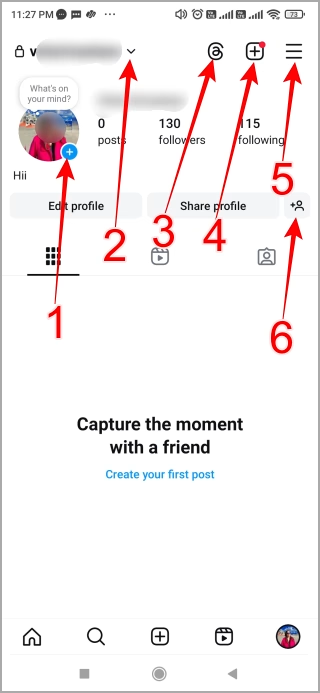
- Blue Circle Icon with a Plus Sign: This icon is used to add a new Story to your account.
- Username with Arrow Pointing Down: Used to switch between multiple accounts, if there are any. If you see the red dot, then it indicates that you have unread notifications from one of your other accounts.
- @ Symbol: This icon will take you to Threads (Meta) or ask you to download/Install Threads (Meta).
- Box with a Plus Sign: This box contains options for creating Reels, Posts, Stories, Highlights, and Live.
- Menu Icon: Use this icon to access Instagram Settings.
- Person with a Plus Sign: This icon is used to discover new people that you might want to follow. This icon may be displayed on recommended Stories of accounts that you don’t currently follow, and you can follow these accounts by tapping this icon.
Icons below the Edit Profile Button:
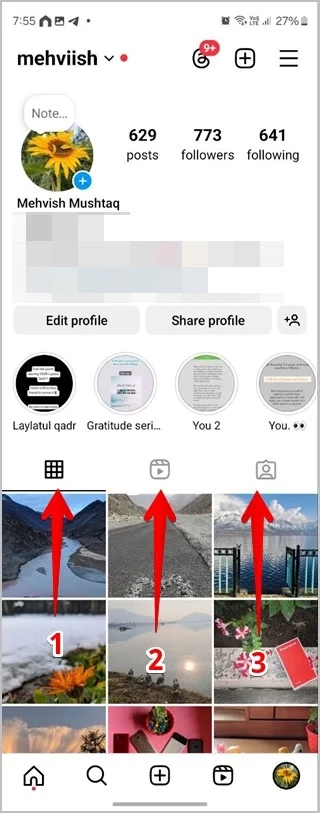
- 9-grid icon: Shows all your Instagram posts.
- Reel icon: Shows all of your published Reels.
- Person Icon: Shows your tagged posts. Tap on an icon to switch to it.
Icons on the Posts Section
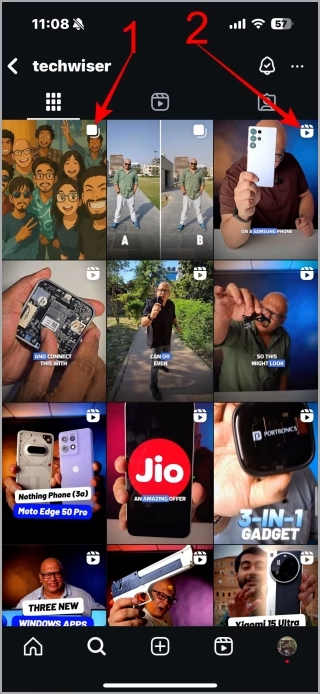
- White Multiple Squares Icon: That post contains multiple pictures or videos.
- Reel Icon: Shows that this is a reel.
Icons on Someone Else’s Profile
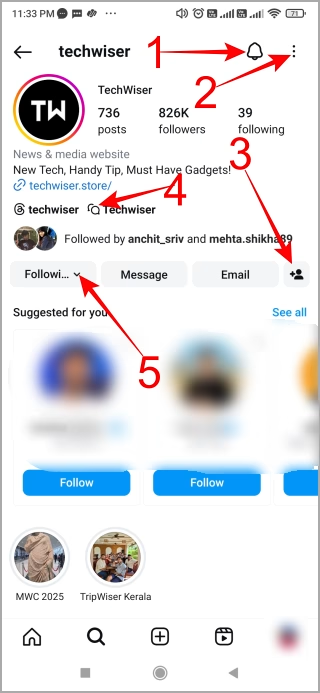
- Bell Icon: Clicking on the bell icon will allow users to receive notifications from this account about any posted story, Reel or IGTV video, etc. If the user has enabled the notifications for any of these items, there will be a check mark next to this icon.
- Three-Dots Icon: The three-dots icon gives the user options related to the profile that they are viewing, such as Block, Restrict, Hide Story, copy URL, etc.
- Show Suggestions Icon (Person with Plus): The show suggestions icon will show you accounts that Instagram recommends to you.
- Broadcast Channel Icon (Two Chat Bubbles Stacked): When you click on this icon, it will take you to the broadcast channel associated with this page.
- Arrow Icon by Following Button: This small arrow next to the Following button allows you to mute, restrict, unfollow or add the account as a Close Friend.
5. Instagram Story Symbols Meaning
Icons That Show Up While Viewing Stories
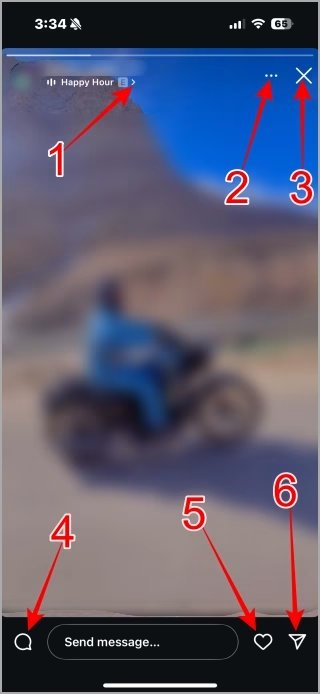
- Audio Information (Right Arrow) – Displays the music information and additional audio options associated with the story.
- More Story Options (Three Dots) – Show additional story options such as muting and reporting.
- Close (X) – Closes the story.
- Comment (Speech Bubble) – You may leave a comment regarding the story. The ability to view comments depends on whether the person who posted the story has it activated on their profile.
- Heart – Click on this icon to give the story a “like.” You will not be able to send a like to the account via a DM.
- Paper Airplane – This icon allows you to send a direct message (DM) to the story or share it with someone else either using the Instagram app or another app.
Icons That Show Up While Creating Stories
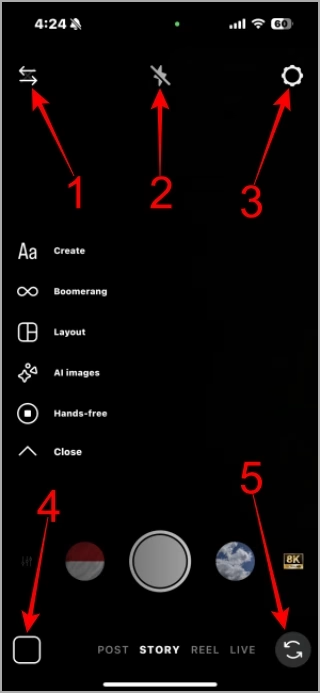
- The Move (Two Arrow) Icon: allows the user to move the story tools from one side of the screen to the other.
- The Flash (Lightning) Icon: is used to activate the flashlight and toggle between the three modes: On, Auto, and Off.
- The Settings (Gear) Icon: provides the option for customizing camera settings for stories, reels and live streaming.
- The Add Media (Square Photo) Icon: is used for adding media from the user’s gallery or recents section.
- The Flip Camera (Two Curved Arrows in a Circle) Icon: allows the user to switch the camera from the front to back and vice versa.
Icons That Show Up While Editing Stories
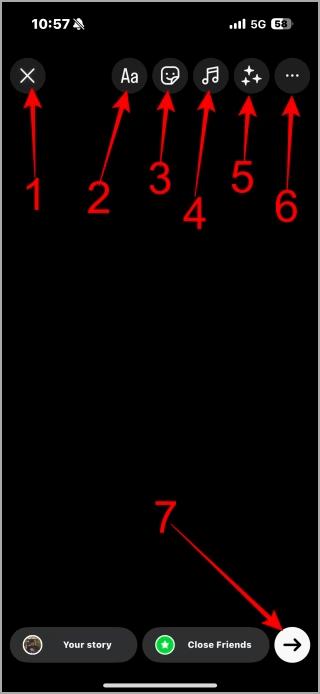
- Cancel Editing (Cross) Icon: Cancel the edit.
- Aa Icon: Add Text
- Smiley Icon: Add Stickers
- Music: Add Music
- Three Stars: Add Effects
- Three-dot: Open menu
- Arrow Icon (At the bottom): Tap this to publish the story, add it to Close Friends List or send a message.
Icons That Appear In the Text Tool
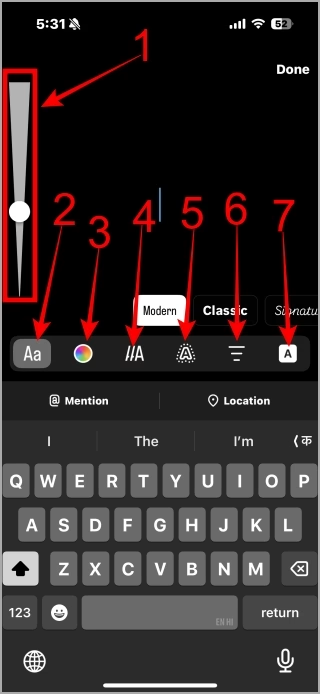
- Icon for “Text Size” (Gray Slider with White Dot): Changes the size of the text by sliding the dot left or right to increase or decrease text size.
- Icon for “Text Font” (Aa): Change the style of the text.
- Icon for “Color Palette”: Select a colour for the text.
- Icon for “Animation Text Styles” (two slash with A): Add animations to your text.
- Icon for “Text Effects” (Dots around A): Different types of text effects.
- Icon for “Align Text” (three lines): Align your text to the left, centre or right.
- Icon for “Add Background” (A Inside a Box): Add a background colour to your text.
Icons That Appear In the Color Palette
- Eyedropper tool (Dropper Inside White Circle) Icon: Pick a color from your image.
- Color Options Icons: Select from different colors for your text.
Link to related: ATM Full Form: Automated Teller Machine Explained
6. Instagram Reels Symbols Meaning
On Instagram Reels, you will find similar icons with the same meaning as those present in a post.
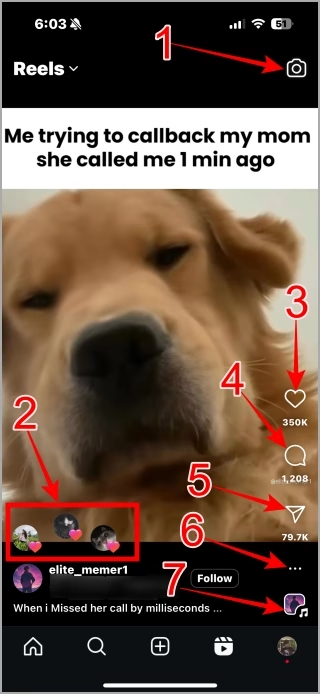
- Camera Icon: Use it to create your own Reel.
- Profiles with pink Heart Icon: Icon of friends’ profiles who liked the same reel.
- White Heart Icon: It is used to like the Reel. Turns red after liking.
- Chat Bubble: Comment on the Reel.
- Paper Plane icon: Share the Reel.
- Three-Dot Icon: Open the Menu to share the reel, manage content preferences, remix, etc.
- Sound Icon: Tap this icon to go to the audio page of the sound used in the video.
7. Instagram Live Video Icons
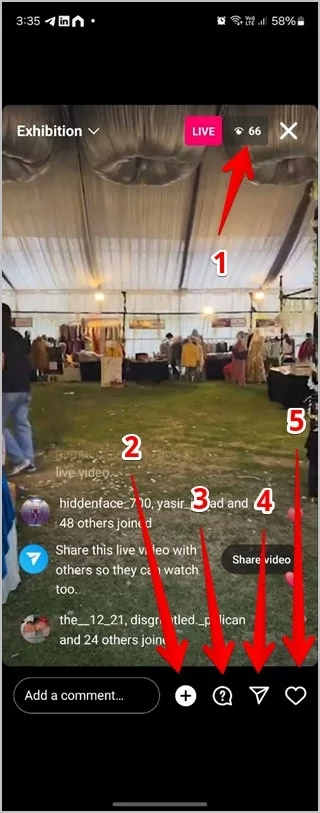
- Number at the top: Shows how many people are watching the Live Video.
- + Plus Icon: Reveal a menu that shows another + icon, but inside a video camera. Tap that to send a request to join the live video.
- ? Question mark in a chat bubble: Share questions from viewers during the broadcast
- Paper plane icon: Share the live video with others.
- Heart Icon: Like the video.
🚀 Conclusion
Symbols in Instagram are not just decorative—they’re a powerful branding and communication tool. When used correctly, they enhance clarity, boost engagement, and help you stand out in a crowded platform.
❓ FAQs About Symbols in Instagram
Yes, Instagram symbols (emojis and Unicode characters) are generally safe to use within the platform’s features like bios and captions, provided you adhere to Instagram’s community guidelines and brand policies
They don’t affect Instagram’s algorithm directly, but they improve CTR and engagement.
You can copy them directly from this article or any Unicode-compatible source.