
Sometimes, a wonky setting can lead to your desktop image getting rotated so that the image is sideways or upside-down. This issue can be caused by a mishap with hotkeys or graphic card properties.
This walkthrough will show you how to fix the issue and get your computer’s image back to normal.
Rotate an Upside-Down Computer Screen Image via Graphic Settings
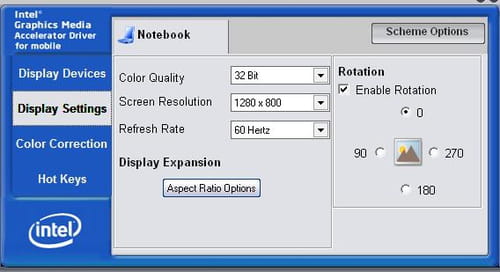
With the Desktop screen displayed in front of you, left-click to access the Graphic Properties option. There, you should select the Rotation Tab and uncheck the box labeled Enable Rotation:
Rotate an Upside-Down Computer Screen Image via Display Settings
If this does not solve the issue, you should check your desktop display properties. On the Desktop, left-click to access the Properties option. Select the Parameters tab, and click the Advanced option.
From the displayed list, choose the name corresponding to your graphic card model. Then, select Rotate, and change it to zero degrees or to the Normal mode.
Rotate an Upside-Down Computer Screen Image via Keyboard Shortcuts
In the event that none of these actions are successful, you can simply try to rotate your screen using the following keyboard shortcut: [CTRL] + [ALT] + [Up/Down/Left/Right arrows].