Skype relies on P2P technology to enable direct IP-based connections between Skype users. One result of using such technology is that the public IP of the user is disclosed during Skype-to-Skype calls.
This guide will teach you how to hide your IP address when making calls to people who aren’t in your contact list.
Stop Skype for Desktop from Disclosing Your IP
Open Skype, and click Tools > Options. Go to Advanced settings > Connections, and tick the Allow direct connections to your contacts only checkbox:
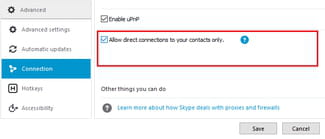
Click Apply to save your new settings.
How To Prevent the Skype App from Disclosing Your IP
Open the Skype app. Tap Menu > Settings, and scroll to the Privacy section. Toggle the Direct connections only switch ON:
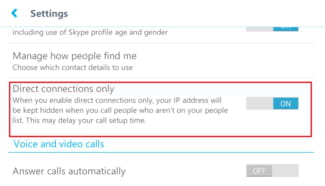
After updating this setting, Skype will only allow direct connections with people who are in your contact list. Connections with non-contact users will be made through Microsoft servers.