



In this tutorial, you will learn how to install Skype, the popular VoIP software. You can use the app to video chat, send messages, and to make international calls. The application also comes equipped for screen and file sharing, transforming both professional and personal communication.
This FAQ will show you how to create an account on Skype.
N.B. Please note that Skype’s MSN option has been withdrawn and may no longer be used in conjunction with the application.
Download Skype
If you do not have Skype, you may download it here by selecting the appropriate version for your device.
N.B. We recommend that you close any personal web servers, such as Wamp Server or EasyPHP, during this process, as they may interfere with Skype.
Installing Skype
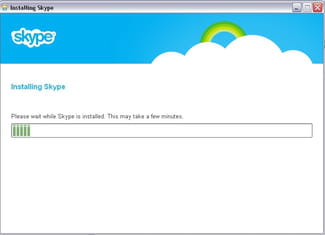
Once Skype has been downloaded, launch the installation by double-clicking on the software folder. Then, follow the instructions on the screen:


Creating a Skype Account
Open Skype, and click Create an account:

Select your desired pseudonym, and fill in the required information fields:

Click I agree at the bottom of the page to finalize your account information. Once all of your information is saved, Skype will redirect you to it’s main platform, where you can add contacts and begin using the application.