



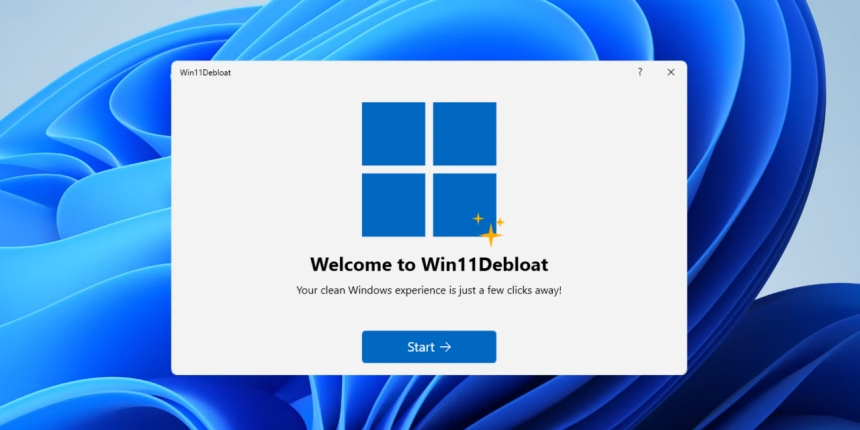
A widely discussed PowerShell script for Windows 11 is gaining attention for helping users remove unnecessary preinstalled apps, ads, and telemetry from Microsoft’s latest operating system. The free tool, commonly referred to as a debloating script, aims to streamline Windows 11 by eliminating unwanted items that many consider “bloatware,” potentially improving privacy and system responsiveness.
Summary:
Windows 11 comes installed with a variety of default applications, background services, personalized suggestions, and data-collection features that some users find intrusive or unnecessary. While all of this can be manually disabled or uninstalled, the process can be time-consuming and technical for casual users. A community-created PowerShell debloat script consolidates many of these tweaks into a single, scriptable process that automates removal of built-in apps, stops telemetry, and suppresses ads and promotional UI elements.
The script is open-source and runs within Windows PowerShell with administrative privileges. It simplifies the task of stripping away items such as bundled apps and background tracking services that users rarely use, allowing them to reclaim control over their system’s configuration more quickly than adjusting each setting individually.
There are a few ways to run Win11Debloat, but I prefer downloading the ZIP from GitHub and running it manually. It gives you more visibility into what’s happening. Here’s the process:
- Download the latest release ZIP from the Win11Debloat GitHub page and extract it to a folder.
- Open PowerShell or Terminal as an administrator.
- Run
Set-ExecutionPolicy Unrestricted -Scope Process -Forceto temporarily allow script execution. This resets the moment you close the window, so it doesn’t leave your system exposed. - Navigate to the extracted folder using
cdfor example,cd C:\Users\PC\Downloads\Win11Debloat-2026.02.07\Win11Debloat-2026.02.07, then run.\Win11Debloat.ps1.
If you’d rather skip the download, there’s a quicker method. You can run a single command in PowerShell that downloads and executes the script automatically:
- Open PowerShell or Terminal as an administrator.
- Paste the following command:
& ([scriptblock]::Create((irm "https://win11debloat.raphi.re/")))and press Enter. - Wait for the script to download and launch — it’ll present the same menu as the manual method.
The files are saved to your %temp%/Win11Debloat folder and cleaned up once the script finishes.
Supporters say running the debloat script can leave systems feeling less cluttered and more focused on essential functions, especially on older or less powerful PCs where every bit of available resource matters. These tools also appeal to users who prefer a more minimal and privacy-oriented Windows setup without extra Microsoft-added content.
However, not all experts agree on the benefits of such scripts. Critics argue that the practical performance impact of removing default apps and telemetry can be minimal on modern hardware, and aggressive removal of system components carries some risk of unintended behavior or instability. Additionally, major Windows updates may reinstall some features or change how system components interact, which can reduce the long-term effectiveness of a one-time debloating action.
Highlights:
-
The debloat script automates removal of built-in Windows 11 apps, ads, and telemetry features many users find unnecessary.
-
It runs via PowerShell and is distributed as an open-source utility that users can inspect before executing.
-
Advocates say it can make Windows feel cleaner and less intrusive, which is especially valued on older or resource-constrained PCs.
-
Some technical voices caution that the performance benefits are modest and that scripts can sometimes cause unexpected system issues.
-
Major Windows updates regularly reset system defaults or reinstall certain components, potentially undoing some debloat effects over time.
Why It Matters:
As more users scrutinize how operating systems handle data, privacy, and resource use, tools that offer automated cleanup or customization options appeal to both advanced users and those who prefer more control over their PCs. Although the real-world performance gains from such debloating methods are debated, the interest underscores a broader trend: users want systems that are not only functional but also respectful of privacy and free from unwanted software.