



A terminal emulator in Linux is simply an application—just like a browser or music player. There’s nothing inherently intimidating about it. The commands you run inside it can be powerful, but the terminal itself is just a tool.
Originally, the word terminal referred to physical hardware with a keyboard and screen used to control mainframe computers. Today, a terminal emulator is software that replicates that behavior on your Linux system.
Most Linux terminal emulators replicate the classic VTxxx terminals from DEC, while others emulate IBM, HP, and other legacy systems. Many modern Linux terminals look similar, especially those built on the VTE library, but they differ in performance, customization, and additional features.
If you want more power, better workflows, or enhanced customization, here are the 10 best Linux terminal emulators you can use.
1. AltYo
Best for: Drop-down style + advanced tab management
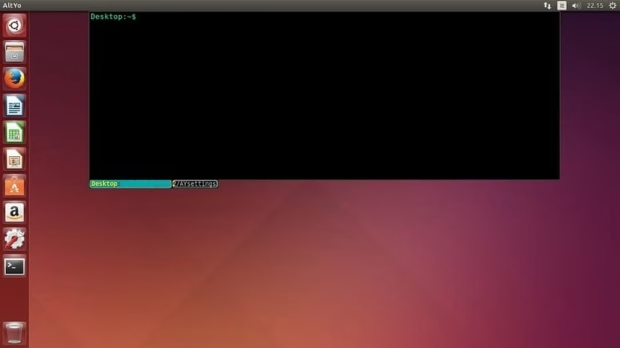
AltYo is a lightweight drop-down terminal featuring extensive tab controls. You can rearrange, rename, lock, and auto-start tabs. It slides down smoothly from the screen edge and works great with tiling window managers.
Key Features:
- Drop-down terminal
- Auto-start apps in new tabs
- Beginner-friendly settings panel
- CSS-based customization
- Website
2. Kitty
Best for: Modern, GPU-accelerated performance
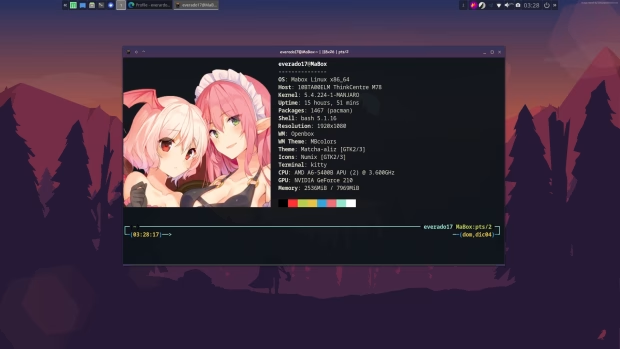
Kitty is one of the fastest Linux terminal emulators thanks to its OpenGL rendering, which offloads work to the GPU instead of the CPU. You can open multiple tiled instances, group them, and even save full session layouts.
Key Features:
- GPU-based OpenGL rendering
- Multiple tiling layouts
- Save/restore sessions
- Highly configurable
- Website
3. Extraterm
Best for: Command output management + productivity tools
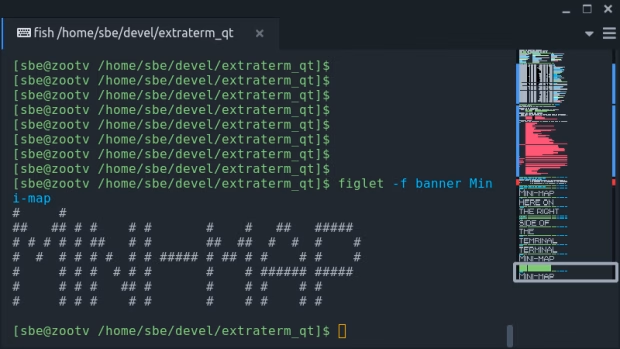
Extraterm stands out with its command frames, which place command output in color-coded blocks—blue for success, red for failures. You can delete output, open frames in a new tab, or edit output in Selection Mode.
Key Features:
- Command frames for visual clarity
- Use previous command output as input (
from) - Display files directly in terminal (
show) - Supports image previews
- Website
4. Urxvt
Best for: Speed, flexibility, and Perl extension support
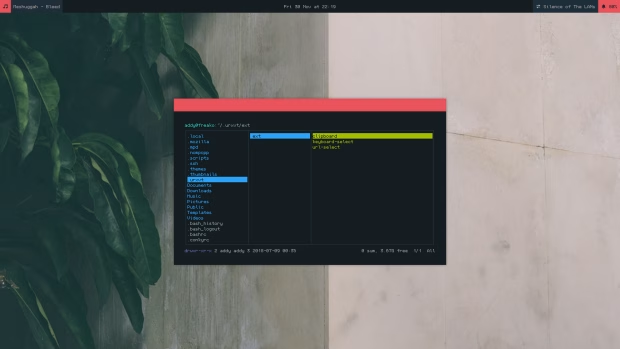
Urxvt is a lightweight terminal emulator designed for speed and Unicode compatibility. It supports server-client mode for faster startup and offers power-user customization through Perl extensions.
Key Features:
- Unicode support
- Custom line height & spacing
- Server-client mode for speed
- Perl extensions for tabs, URLs, clipboard, etc.
- Website
5. Xfce Terminal
Best for: Beginners + optional drop-down mode
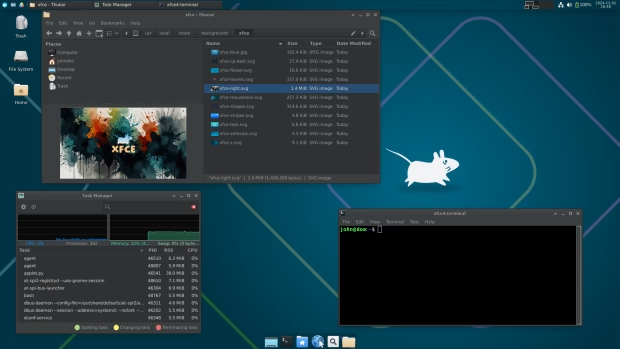
Xfce Terminal is simple, fast, and user-friendly. You can customize it with easy dialogs and even enable a built-in drop-down mode similar to Guake or Tilda.
Key Features:
- Drag-and-drop file paths
- Transparent backgrounds
- Compact mode
- Optional drop-down mode
- Website
6. Konsole
Best for: Advanced customization without complexity
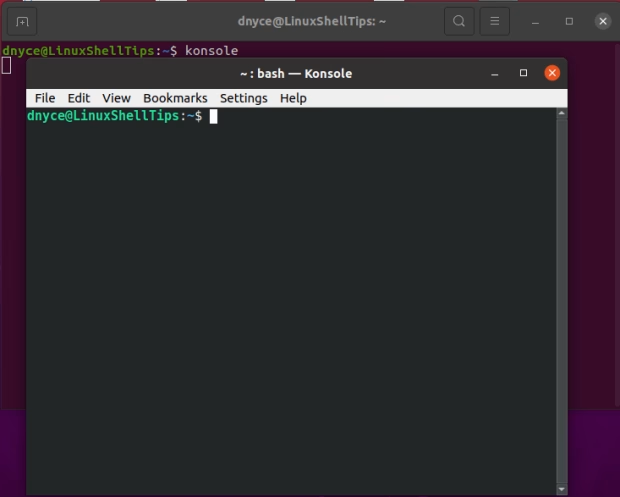
Konsole is the feature-rich terminal emulator from KDE. With profile-based customization, split views, tab management, activity monitoring, and command pause controls, it’s one of the most powerful terminals on Linux.
Key Features:
- Multiple profiles with unique settings
- Split view for multitasking
- Clone or detach tabs
- Activity and silence monitoring
- Integrates with Yakuake (drop-down)
- Website
7. Gnome Terminal
Best for: Stability + familiar interface
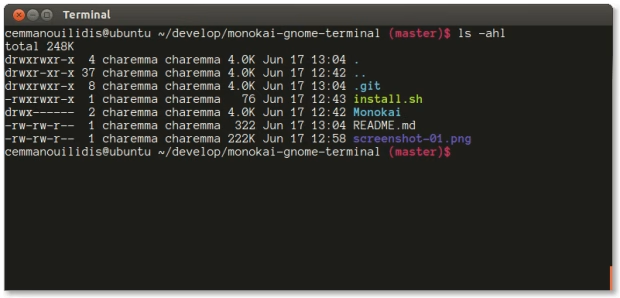
GNOME Terminal is the default for GNOME-based distros. It supports profiles, color schemes, encoding options, and other essential customization features through a simple interface.
Key Features:
- Profile support
- Clean, stable interface
- VTE-based compatibility
- Works similarly to MATE and Pantheon terminals
- Website
8. Terminology
Best for: File previews + visual enhancements
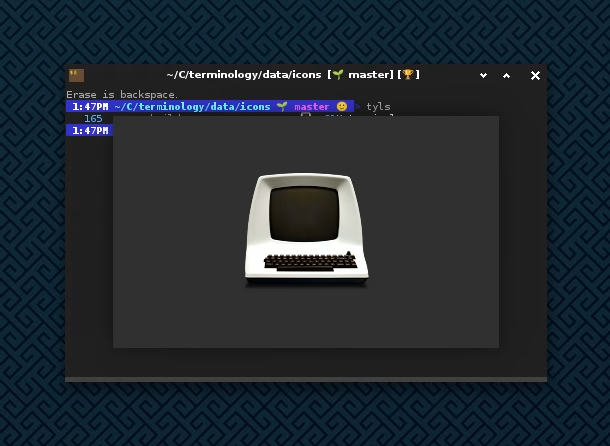
Terminology is a feature-rich terminal that makes the command line visually appealing. It supports previews for images, videos, URLs, and file paths. It also supports multi-pane layouts for advanced workflows.
Key Features:
- Inline previews for many file types
- Multi-pane window splitting
- Grid-style tab switcher
- Clickable URLs and paths
- Website
9. QTerminal
Best for: Lightweight drop-down terminal + multiplexing
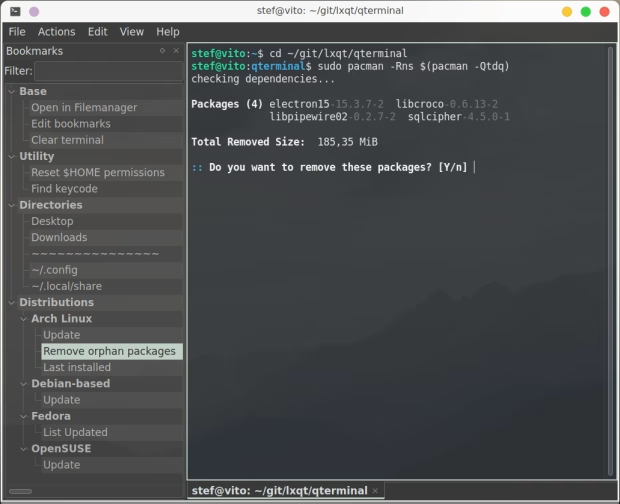
QTerminal is fast and minimal, yet packed with useful features such as bookmarks, transparency, custom shortcuts, and multiplexing support. You can split windows horizontally or vertically to display multiple terminals at once.
Key Features:
- Lightweight and responsive
- Drop-down mode
- Vertical + horizontal window splitting
- Multiplexer support
- Custom themes and layout options
- Website
10. Termite
Best for: Keyboard-driven, Vim-style terminal workflow
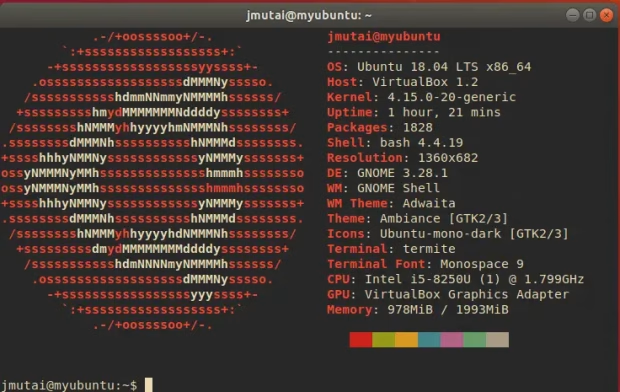
Termite focuses on speed and keyboard-driven productivity. It supports two modes—Insert and Selection—each with its own shortcuts. It’s ideal for tiling window managers and mouse-less workflows.
Key Features:
- Vim-like workflow
- Transparent background support
- Clickable URLs
- Configurable scrollback and fonts
- Perfect for keyboard-oriented users
- Website
Note: “Termite” is different from “Termit,” which follows another approach.
Linux offers dozens of terminal emulators—some simple, some highly advanced. If you’re a beginner, Xfce Terminal, GNOME Terminal, or QTerminal are great picks. For power users, Kitty, Konsole, Urxvt, or Extraterm deliver exceptional performance and customization.
Whether you want speed, advanced features, visual enhancements, or keyboard-driven workflows, there’s a perfect Linux terminal emulator waiting for you.
