



Adobe Reader is a great tool to open and edit your PDF files. It also gives you the ability to take a screenshot of said files.
If you’d like to do so but don’t know how, follow the steps in this tutorial.
Take a Snapshot of a PDF File in Adobe Reader
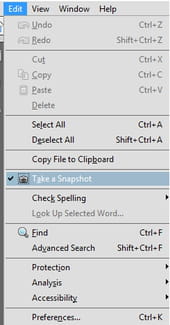
Open your PDF file in Adobe Reader. Click Edit > Take a Snapshot.
Your cursor will transform into a small cross. Select the area you that you want to include in the screenshot by right-clicking and dragging around the area. When you release the mouse button, you will receive a confirmation message:
Paste the copied image in your desired image editor, and save your file:

N.B. To undo a selection, simply press CRTL + SHIFT + A.