




Introduction:
Forgetting your Amazon account login location can be a security problem for many users. You might forget to log out from your friend’s device, your device might be stolen, or you might think your account has been hacked, and knowing how to log out from your Amazon account on all devices or a few devices might be a skill every Amazon shopper needs to learn in 2026.
- Introduction:
- This guide is Mainly For :
- Why It’s Important to Remotely Sign Out of Your Amazon Account
- Method 1: Sign Out of Amazon on All Devices (By Changing Your Password)Account & Lists → Your Account → Login & security
- Method 2: Remove Amazon Devices Individually
- How to Sign Out of the Amazon App on Mobile
- For Android and iOS Devices:
- Sign Out of Prime Video and Fire TV Devices
- Sign Out from Kindle and Echo Devices
- Kindle:
- Echo/Alexa:
- Physical Reset:
- Troubleshooting:
- “India OTP issues?”
- Amazon.in requires an additional OTP. Verify phone/email first.
- FAQ:
- 1. Does changing the Amazon password log out all devices?
- Yes! Instantly logs out everywhere except the current browser/app.
- 2. How do I view all the devices logged into my Amazon account?
- Account & Lists > Manage Content and Devices > Devices tab.
- 3. Can I remotely log out of my Amazon account using the phone app?
- Yes, follow this path: Account > Your devices > Deregister each device.
- 4. How to sign out of Amazon Prime Video on my Smart TV?
- Website: Content & Devices > Prime Video > Deregister device.
- 5. What if I lost my phone and my Amazon is logged in on the device?
- Change the password immediately, and then enable 2FA.
- 6. Deregistering my device, does it delete my purchase history on Amazon?
- No, the device session is terminated, and the purchase history remains as is.
- 7. Can another person log in using my device after deregistering my device from the Amazon website/app?
- No, they need the password and 2FA code as well.
- 8. How to remotely log out of my Amazon Kindle Paperwhite device?
- Content & Devices > Devices > Deregister Kindle.
- 9. How is the logout process on Amazon.com compared to Amazon.in?
- Similar, but the Amazon.in account may require OTP verification.
- 10. Forgot the devices logged into my Amazon account. How can I find them?
- Check the device list first, and then the password change option.
- Conclusion :
This guide is Mainly For :
- Amazon Prime members who share TVs
- Students who share college devices
- Parents who secure family accounts
- People who travel a lot
- What Does “Log Out of Amazon on All Devices” Mean?
Amazon allows users to log out from all devices, such as phones, tablets, TVs, Kindle, and Echo, even if they do not have physical access to those devices. There are two main ways to log out from all devices: changing passwords and device management.
Read also: Best Credit Cards India Beginners 2026
Why It’s Important to Remotely Sign Out of Your Amazon Account
- Security: Prevents Unauthorized Purchases (₹50,000+ Losses Reported Monthly)
- Privacy: Prevents Others from Viewing Your Order History
- Account Sharing: Family TVs, Borrowed Phones
- Lost/Stolen Devices: Immediate Access Cutoff
Review Devices Signed In to Your Amazon Account
Step 1: Go to amazon.in → Account & Lists (top right corner) → Your Account
Step 2: Click on Login & security → Manage devices
Step 3: View Amazon apps/devices list (phones, tablets, TVs, etc.)
More Read

Method 1: Sign Out of Amazon on All Devices (By Changing Your Password)
Account & Lists → Your Account → Login & security
- Click Edit next to your password
- Enter new password (length 12+ characters, unique)
- Save changes → All devices logged out instantly (except current session)
Method 2: Remove Amazon Devices Individually
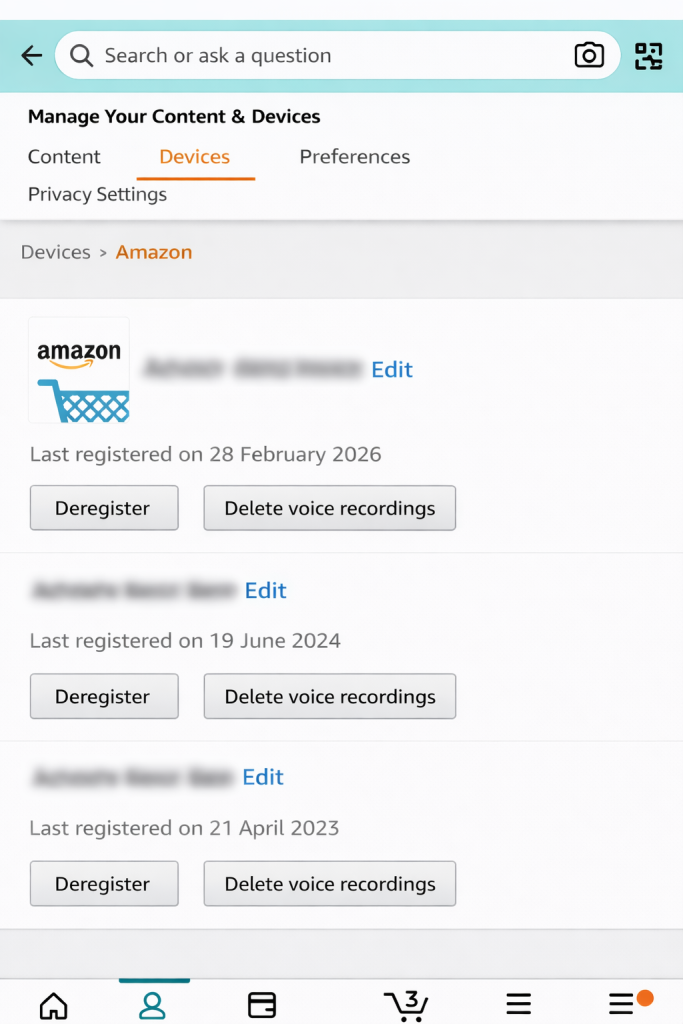
- Account & Lists → Manage Your Content and Devices → Devices tab
- Select service: Amazon Shopping, Prime Video, Kindle
- Click Deregister next to each device
- Confirm → Logged out in 2-5 minutes
How to Sign Out of the Amazon App on Mobile
For Android and iOS Devices:
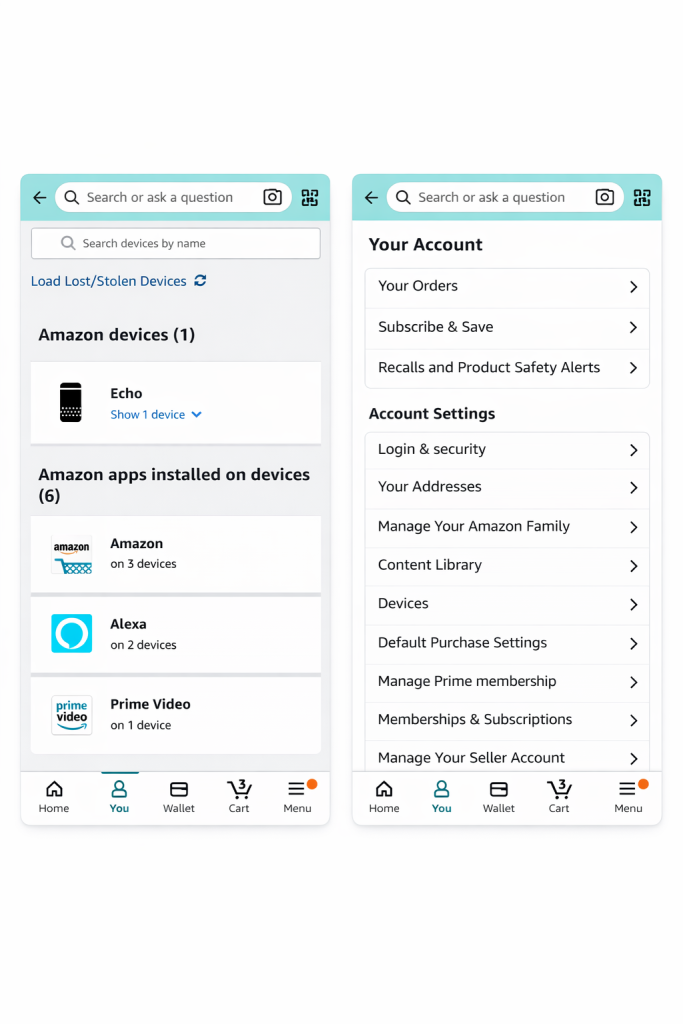
- Open Amazon app → Menu on the bottom screen → Account
- Scroll down to Your devices → Tap Amazon (or Prime Video)
- Deregister next to each phone/tablet
- All done! Your remote logout is complet
Sign Out of Prime Video and Fire TV Devices
- Website:
Content & Devices → Prime Video tab → Deregister TV
- Fire TV Stick:
Settings → My Account → Amazon Account → Deregister
- Smart TVs:
Same device list under Prime Video service
Sign Out from Kindle and Echo Devices
Kindle:
- Content & Devices → Devices → Deregister
Echo/Alexa:
- Amazon app → Devices → Echo & Alexa → Forget Device
Physical Reset:
- Hold action button 20+ seconds
Troubleshooting:
- Common Amazon Logout Problems
- “Device not showing?”
- Clear browser cache (Ctrl + Shift + Del)
- Disable VPN/proxy
- Try incognito/private mode
- Wait 24hrs for sync
- “Can’t deregister Echo/Fire TV?”
- Password change method (Method 1)
- Factory reset device physically
- Contact Amazon support (chat)
“India OTP issues?”
Amazon.in requires an additional OTP. Verify phone/email first.
FAQ:
1. Does changing the Amazon password log out all devices?
Yes! Instantly logs out everywhere except the current browser/app.
2. How do I view all the devices logged into my Amazon account?
Account & Lists > Manage Content and Devices > Devices tab.
3. Can I remotely log out of my Amazon account using the phone app?
Yes, follow this path: Account > Your devices > Deregister each device.
4. How to sign out of Amazon Prime Video on my Smart TV?
Website: Content & Devices > Prime Video > Deregister device.
5. What if I lost my phone and my Amazon is logged in on the device?
Change the password immediately, and then enable 2FA.
6. Deregistering my device, does it delete my purchase history on Amazon?
No, the device session is terminated, and the purchase history remains as is.
7. Can another person log in using my device after deregistering my device from the Amazon website/app?
No, they need the password and 2FA code as well.
8. How to remotely log out of my Amazon Kindle Paperwhite device?
Content & Devices > Devices > Deregister Kindle.
9. How is the logout process on Amazon.com compared to Amazon.in?
Similar, but the Amazon.in account may require OTP verification.
10. Forgot the devices logged into my Amazon account. How can I find them?
Check the device list first, and then the password change option.
Conclusion :
Mastering the art of logging out of Amazon on all devices, or chosen devices, takes mere minutes but will save you from countless problems down the line. With either the nuclear option of changing your password or the more precise method of deregistering devices, your shopping account will still be secure in 2026. Secure shopping starts now! For more tech guides, subscribe to newsy.in . What’s your biggest Amazon security worry? Comment below!