Steam is a digital distribution platform that makes thousands of video games available to you on your computer. The program offers the option to conduct automatic downloads in the background of your games.
If you would like to disable this feature, this tutorial will walk you through the steps.
Disable the Auto-Update Feature in Steam
Open Steam, and go to Library. Right-click on a game, then click Properties:

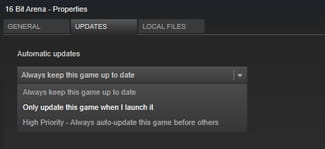
Go to the Update tab. Here, you can choose between the following settings for auto-updates: Always keep this game up to date; Only update this game when I launch it; High Priority – Always auto-update this game before others:
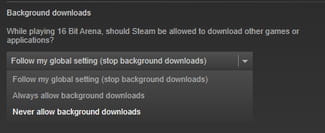
Next, configure the background downloads settings by choosing between the following options:
Follow my global setting; Always allow background downloads;
Never allow background downloads: