Microsoft recently launched a new feature in Microsoft office for windows users which is animated Gifs.now powerpoint users can export the slides as an animated Gif and save it in pc. Microsoft has further enhanced this feature and to export Gif with transparent background. This feature is currently available to users running Office for Windows (Beta Channel) Version 2010 (Build 13318.20000) or later.
How to export Animated GIFs in Power Point
1. Open PowerPoint and create a new ppt file. (Note: Adjust slide size by selecting Design > Slide Size > Custom Slide Size)
2. Once you are finished with the design and content, go to File > Export > Create an Animated GIF.
3. Tick mark the option to Make background transparent.
4. Click the Create GIF button.
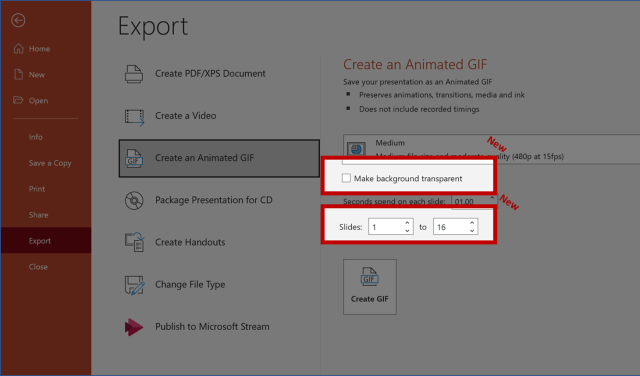
5. In the Save As dialog box, choose a file location to save your Animated GIF and click Save.