WhatsApp is a most popular chating application and anyone know that who uses it, generally has at least 10 to 15 group chats they are part of. With all those chats, they have tons of shared videos and pictures, which add up to more than space. Even if they are disable the option of saving media to our camera roll, WhatsApp still can take up several GBs easily. Now we goto see in this article how to clear Whatsapp Storage on Android Devices.
How to clear Whatsapp Storage Android
Step 1
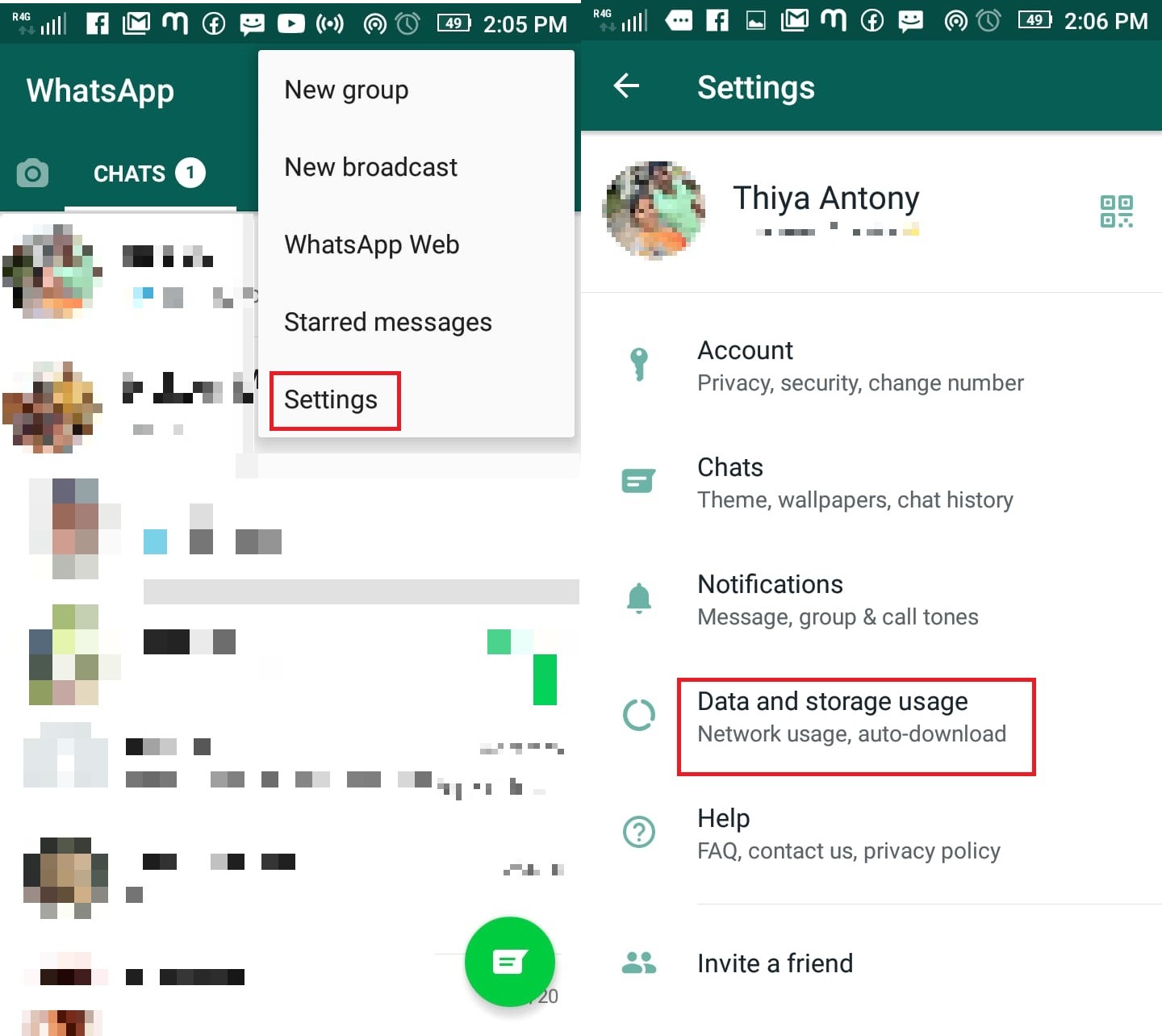
The 3-dot menu located at the top-right corner in Whatsapp. Tap this menu icon then, open “Settings” and move to “Data and Storage Usage“.
Step 2
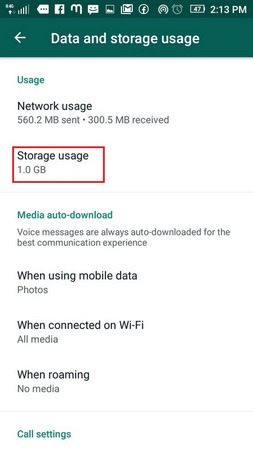
Then, open “Data and Storage Usage” and you will find complete details about your WhatsApp storage Usage.
 Step 3
Next, tap on the “Larger than 5 MB” section and check the files and delete accordingly. All files will be sorted in the order of larger size.
Step 4
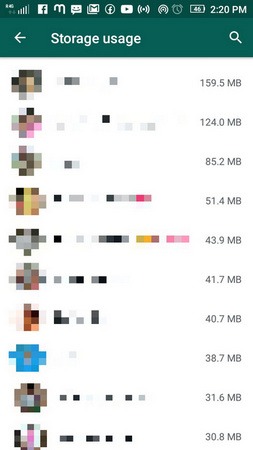
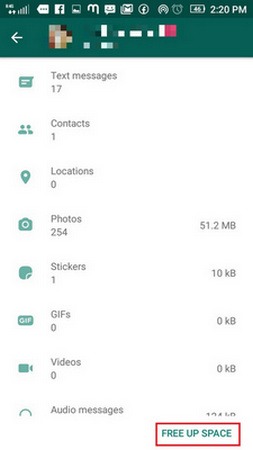
In case, we want to free up WhatsApp storage from a particular chat then scroll down and select a contact.
Step 5
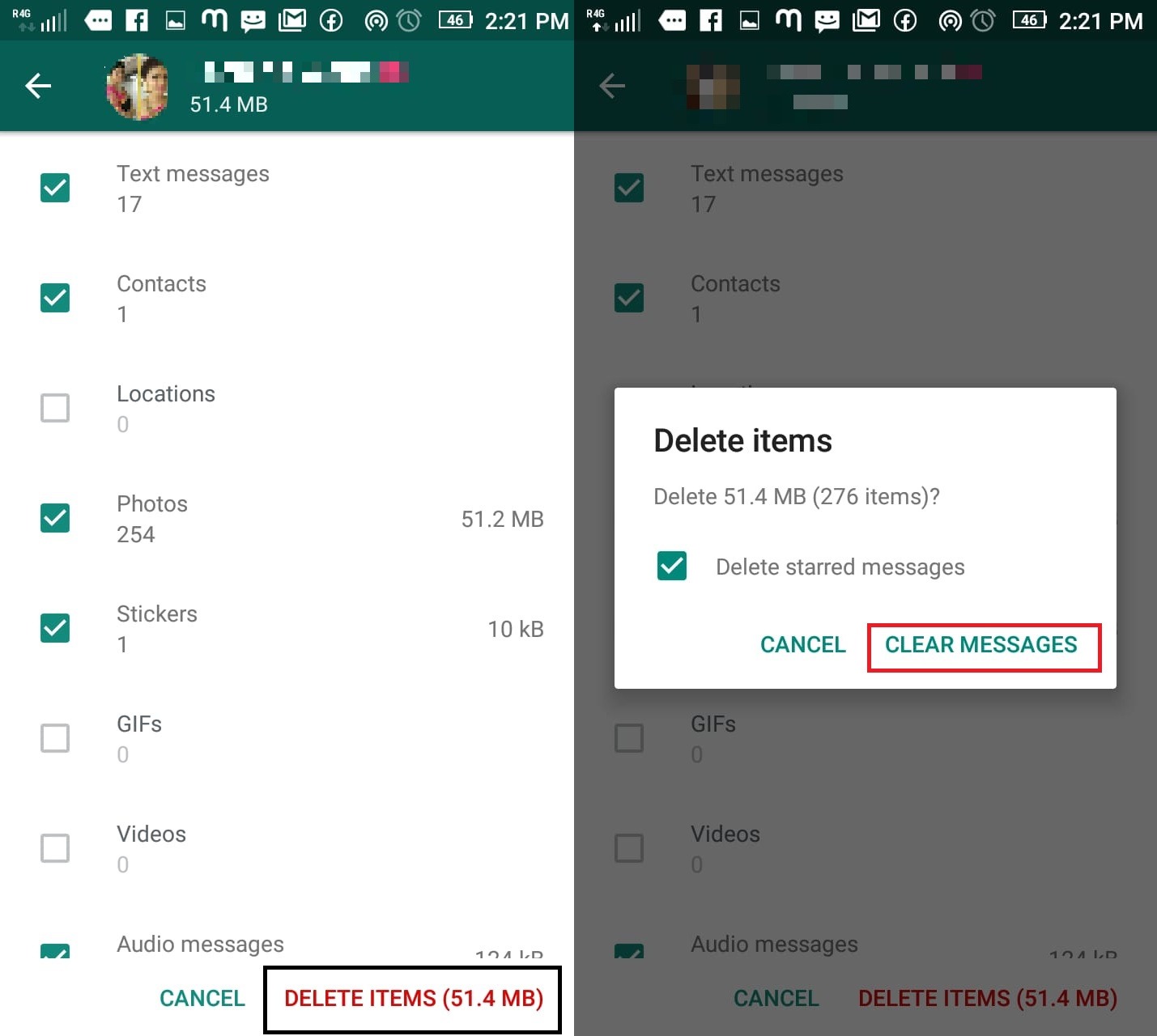
From here, we can similarly check, select, and bulk delete items in just one tap.
Step 6
Finally we got the free-space in Whatsapp Data and Storage Usage on Android.