This article will teach you how to create drop-down lists in Microsoft Excel using a feature called Data Validation. When applied, the Data Validation function serves to restrict data that can be entered in the target cell, requiring users to select a value from a list of pre-determined inputs.
This function is very useful in a number of cases, from planning employee vacation schedules, to monitoring expenses, to general project management. Here’s how to get started.
Create Drop-Down List in Microsoft Excel
In order to perform this operation, you will need at least two sheets open in your workbook: a working sheet and a blank sheet where you can compile your lists.
The first step is to create your list. To do this, head to your blank sheet and list the items that you’d like to include in your drop-down in Column A. The list can be any length you’d like and can include any type of information — some common list items are Yes/No (often abbreviated as Y/N), Pass/Fail, numbered lists, and dates.
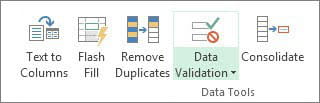
Now, head back to your working sheet and click the cell or cells that you’d like to validate. Then, go to your Data tab and find the option for Data Validation under the Data Groups section:
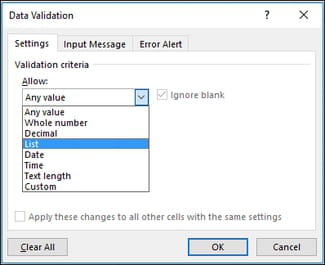
Next, go to the Settings tab and find the Allow box. Select List from the drop-down menu:
Filling in Drop-Down Menu in Excel
Head to your list worksheet and select all of the items that you’d like included in your list. The Source field on the dialog box will automatically register the fields as you select them. Note that if ever you choose to add or delete an item from your list, Excel will automatically update the data validation:
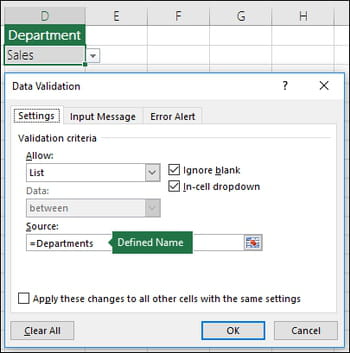
Make sure that the in-cell dropdown box is selected so that you’re sure to see the drop-down arrow next to the cell. Once you’re finished, click OK.
Your drop-down list should now be shown in the cells indicated in your working sheet. To test the data validation, try entering both valid and invalid data into the cells. Valid data should register correctly, while invalid data (information not included in your list) should return an error message.
Creating a Long Drop-Down List in Excel
If you would like to add items to your drop-down list but find that your space has been limited, you should try inserting cells just above the last cell rather than below it.