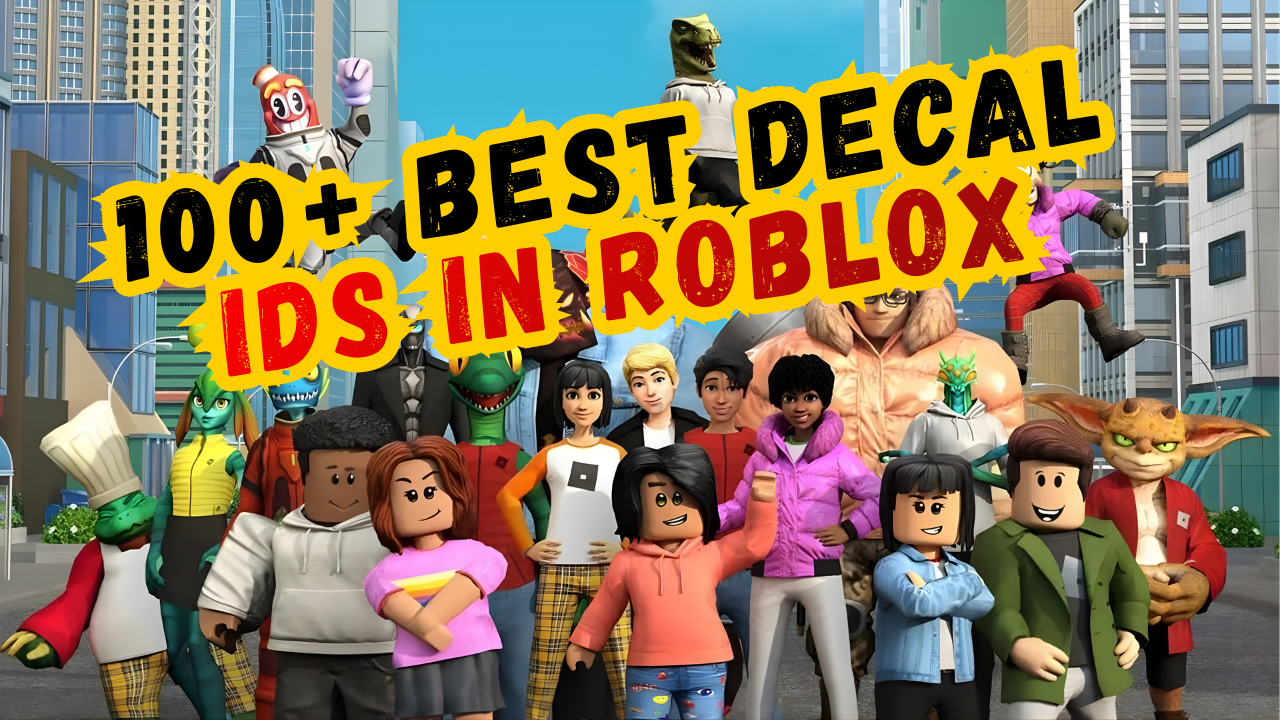
Looking for the coolest decals to use in Roblox? Here’s a fresh, fully updated list of over 100 verified decal IDs — from anime vibes to hilarious memes and spooky horror art — that you can start using right away.
- Why 100+ Best Decal IDs in Roblox Matters
- Understanding Roblox Decals & IDs
- Top Categories & Some of the Best Decal IDs You Can Use
- Step-by-Step Guide: How to Use a Roblox Decal ID
- Latest Updates (Dec 2025)
- FAQ
- What is a Decal ID in Roblox?
- How do I use a decal ID in Roblox Studio?
- What’s the difference between an Image ID and a Decal ID?
- Can I upload my own decal?
- Why doesn’t my decal show up even after entering the correct ID?
- Conclusion
Why 100+ Best Decal IDs in Roblox Matters
Custom decal IDs unlock a world of personalization and creativity for Roblox players and developers.
-
High player demand: Users prefer customized visuals — games with unique decals often feel more immersive and engaging.
-
Creative freedom: Decals let you turn any appropriate image (art, memes, logos) into in-game textures, posters, or UI elements — perfect for building unique spaces, stories, or memes.
-
Easy to implement: Once you have the ID, applying a decal is quick, making it ideal for beginners and experienced creators alike.
Key benefits
-
Add personality to your avatar, builds, or environment
-
Show memes, art, or fandom-style images in games
-
Easily reuse across multiple games/projects
Internal link opportunities:Anime Adventures Codes – Latest Working Codes & How to Redeem
Understanding Roblox Decals & IDs
What is a Decal (vs Image ID)
When you upload an image to Roblox and convert it to a decal, you get a Decal ID — the code you use to apply the image onto walls, objects or UI. Meanwhile, the original upload gets an Image ID. Many beginners confuse the two, but for blocks/parts you almost always need the Decal ID.
Why correct use of IDs is important
-
Using the wrong ID (Image ID instead of Decal ID) may result in nothing showing up.
-
Uploaded images are automatically resized (max 1024×1024) — so high-res uploads get scaled down.
-
Decals must follow Roblox’s Community Standards — copyrighted or inappropriate content may be blocked or removed.
-
Key takeaway: Always copy the correct Decal ID (not image link), and ensure the decal abides by Roblox guidelines.
Top Categories & Some of the Best Decal IDs You Can Use
Here’s a curated selection from over 100 decal IDs — organized by category so you can easily find what fits your vibe.
🔥 Anime-Inspired Decals
| Title / Theme | Decal ID |
|---|---|
| Douma (Demon Slayer) | 8982623704 |
| Hange | 6072474496 |
| Zenitsu | 6239939495 |
| Nezuko (Demon Slayer) | 5444301611 |
| Anya | 9657394390 |
| Gojo (Grey Hair) | 6239940100 |
| Luffy (One Piece) | 10511856020 |
| Dragon Ball | 11759193017 |
| Bahcira (Blue Lock) | 11636146039 |
| Kawaii Anime Girl | 11425468695 |
A great way to show off your favorite anime fandoms — or just decorate your game world with stylish art.
😂 Meme & Funny Decals
| Title / Meme | Decal ID |
|---|---|
| Beluga | 7129155278 |
| Sonic Meme | 10491133376 |
| Sad Spongebob Meme | 10729455663 |
| Pikachu | 732601106 |
| Bongo Cat | 2368504441 |
| Among Us Face | 9180622670 |
| Sus Dog Meme | 11648237431 |
| Cheems (Minecraft Meme) | 9676276958 |
| Amazon Box Meme | 4700049612 |
| Windows XP Error | 4519042263 |
🧟♂️ Horror & Scary Decals
| Title / Theme | Decal ID |
|---|---|
| Haunted House | 7419913829 |
| Pentagram Symbol | 464093673 |
| Smile in the Dark | 9182757592 |
| Ghost Twins | 314722698 |
| Scary Black Cat | 2752828722 |
| Horror Face | 2891891795 |
These are ideal for horror games, spooky houses, or haunted areas in Roblox — adding dread and atmosphere.
Step-by-Step Guide: How to Use a Roblox Decal ID
-
Open Roblox Studio, and load your game world or start a new project.
-
Insert a Part (like a block or wall) — this will hold your decal.
-
Right-click the Part → choose Insert Object → Decal.
-
In the Properties panel, find the Texture (or Image) field.
-
Paste the decal ID in the format:
rbxassetid://YOUR_DECAL_ID(for examplerbxassetid://8982623704). -
Press Enter — the decal appears! Adjust Face property to choose which side of the part shows the image.
✅ If your decal doesn’t appear: double-check you copied the correct Decal ID, not an Image ID. If it still fails, the decal might be removed or private.
Latest Updates (Dec 2025)
-
Roblox continues to enforce content moderation strictly — decals that violate community guidelines (copyright, explicit content) may be removed even after uploading.
-
Community feedback shows that using the wrong ID (Image vs Decal) remains the most common mistake when decals “don’t work.”
-
Many decal-sharing blogs and guides now urge users to verify IDs manually — some older IDs may be invalid or taken down. It’s best to test each decal before relying on it.
FAQ
What is a Decal ID in Roblox?
A Decal ID is the unique numerical code assigned to a decal asset on Roblox. When applied (via rbxassetid://), it tells Roblox which image to display on a part or GUI element.
How do I use a decal ID in Roblox Studio?
Insert a Decal object onto a part → open its Properties → paste the decal ID (with rbxassetid://) into the Texture (or Image) field → press Enter. The image should appear immediately.
What’s the difference between an Image ID and a Decal ID?
Image ID refers to the raw uploaded image asset. Decal ID refers to the decal asset that wraps the image for use on surfaces. For 3D parts/textures, always use the Decal ID.
Can I upload my own decal?
Yes — upload a PNG/JPEG/TGA/BMP image via the Roblox Creator Hub → choose “Decals” → upload → wait for moderation → once approved, you get a new Decal ID to use.
Why doesn’t my decal show up even after entering the correct ID?
Possible reasons:
-
The decal was removed or made private by the creator.
-
The upload violated Roblox community rules and was deleted.
-
You might need to wait a few minutes for moderation if it’s new.
Conclusion
Now that you’ve got access to a huge list of verified decal IDs — from anime art to memes to horror textures — you’re all set to level up your Roblox creations. Try mixing and matching decals for walls, avatars, or UI screens to see what pops best.