



The default blank background of a Word document can look a little drab to some. You may want to jazz it up by inserting a background image or a printed watermark.
To do so, follow the following simple steps.
Insert a Background Image/Watermark to a Word Document
Select the Format option from the Menu bar of your Word document. Go Background > Fill Effect > Picture > Select Picture. Browse for the picture that you want to insert. When done, click OK:
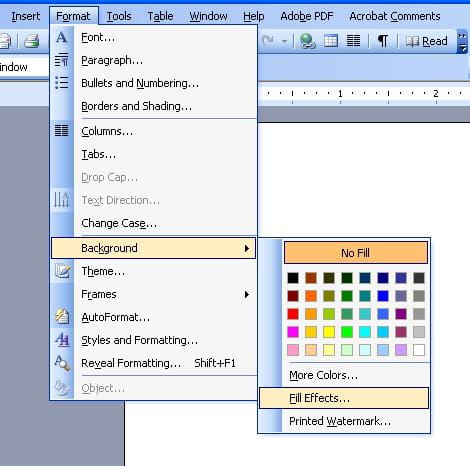
To insert a watermark, select Printed Watermark in the Background tab. Click Select Picture, and browse for the watermark that you want to insert. When done, confirm the changes by selecting Apply, then OK.
